How to buy Bitcoin with Cash App
Cash App is one of the easiest ways to buy Bitcoin in the United States. This guide walks you through every step — from downloading the app to sending Bitcoin to pay for your Apollo Group TV subscription. The whole process takes about 10 minutes for new users, or 3–5 minutes if you already have Cash App set up.
What you need
- A smartphone (iPhone or Android)
- A debit card or bank account
- Your Social Security number (last 4 digits)
- An Apollo Group TV account
Step-by-step instructions
Setting up Cash App
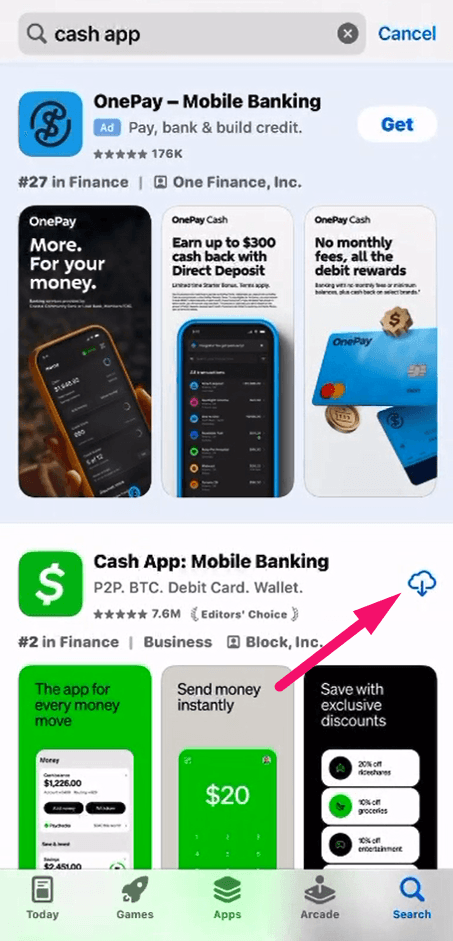
Download Cash App
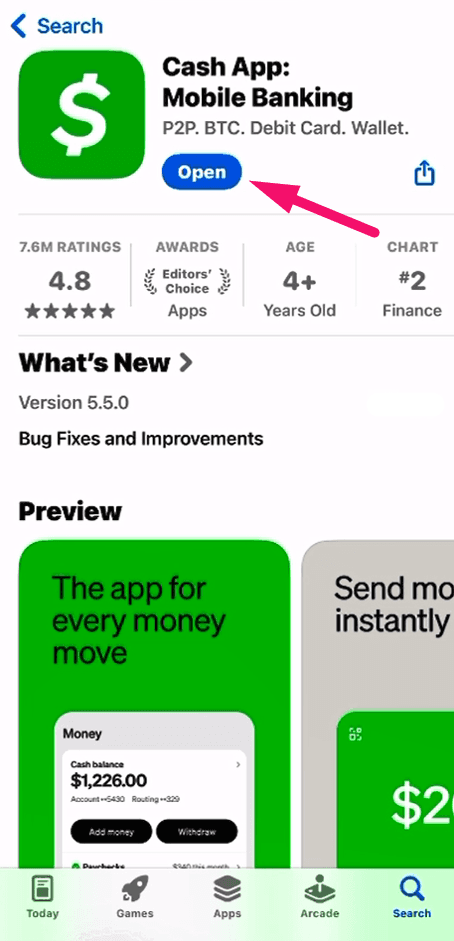
Go to the App Store or Google Play Store, search for Cash App, and install it. Open the app to begin setup.
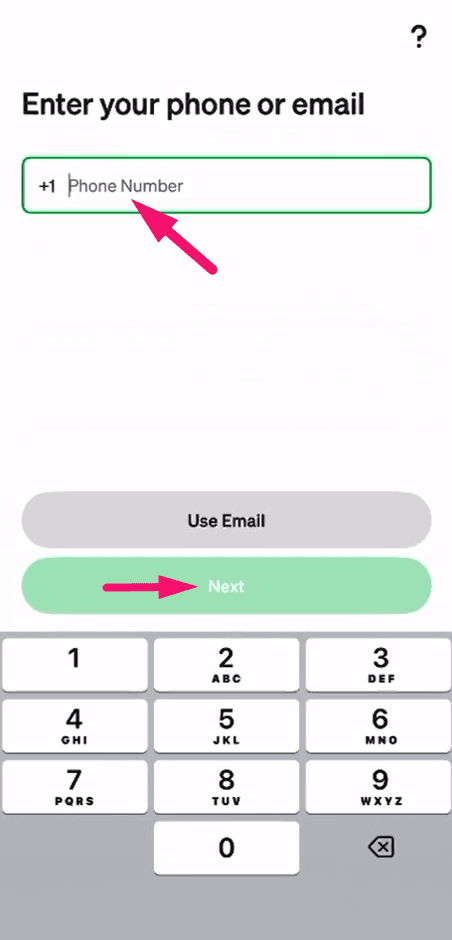
Enter your phone number
Type in your phone number and tap Next. Cash App will send you a verification code via SMS.
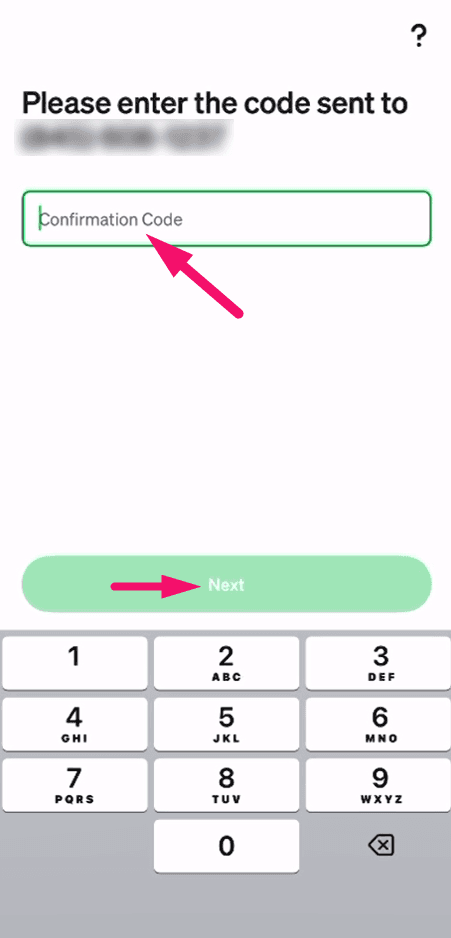
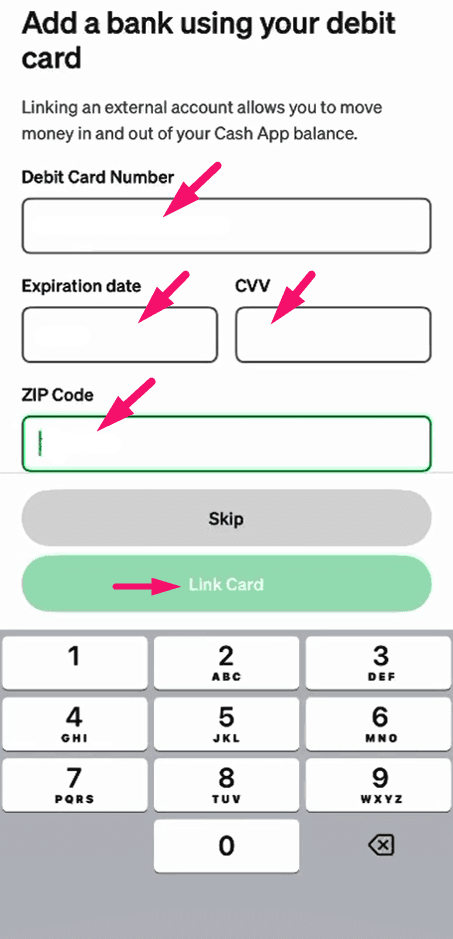
Verify your phone and add a card
Enter the SMS code to verify your phone, then link your debit card by entering the card details.
Set up your profile
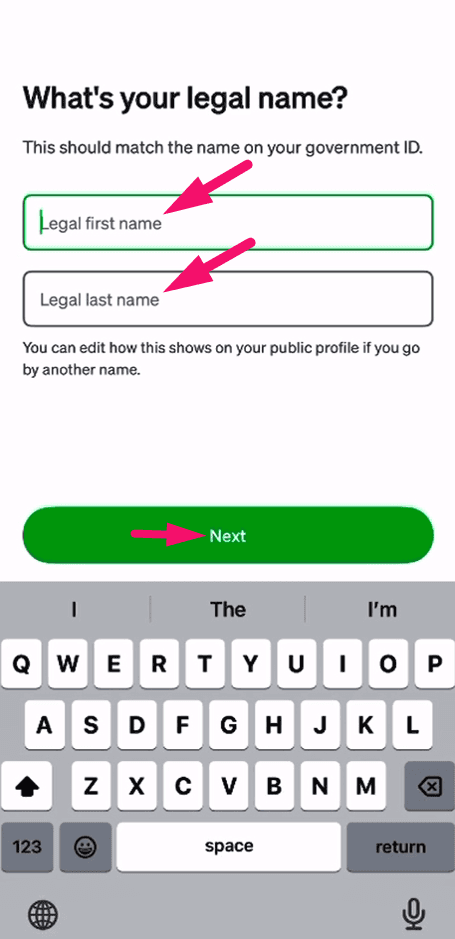
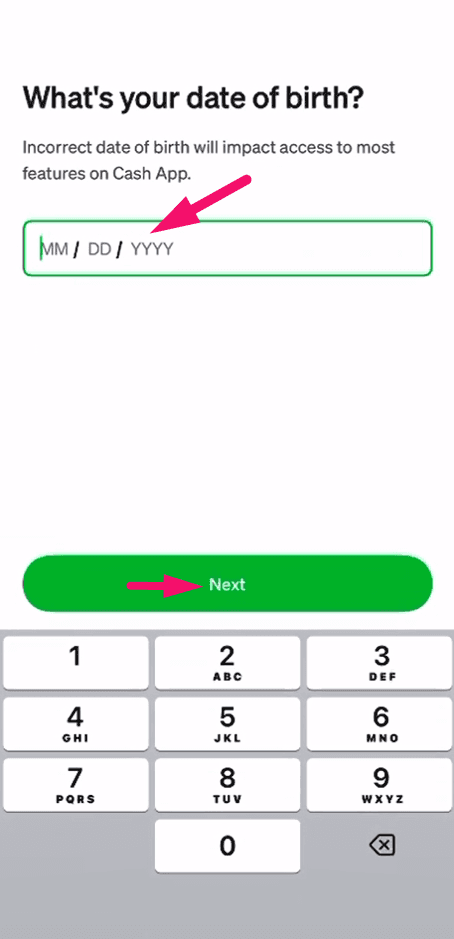
Enter your legal first and last name, then fill in your date of birth and tap Next.
Create your PIN and complete setup
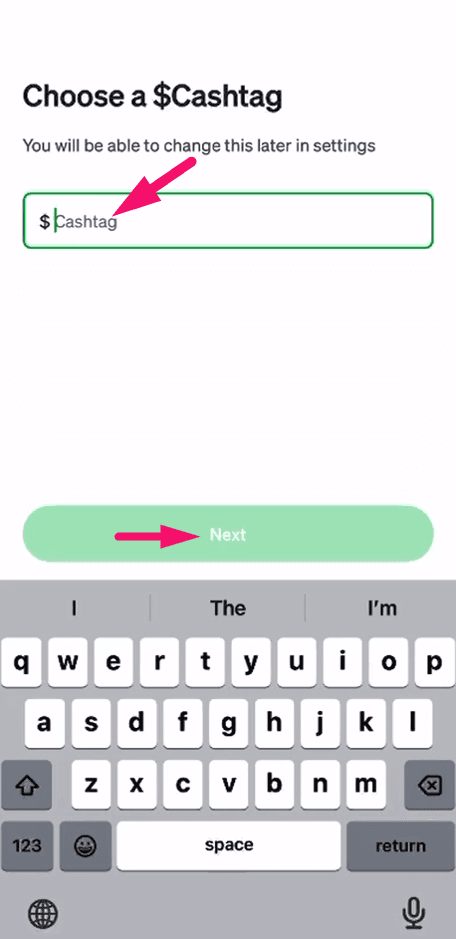
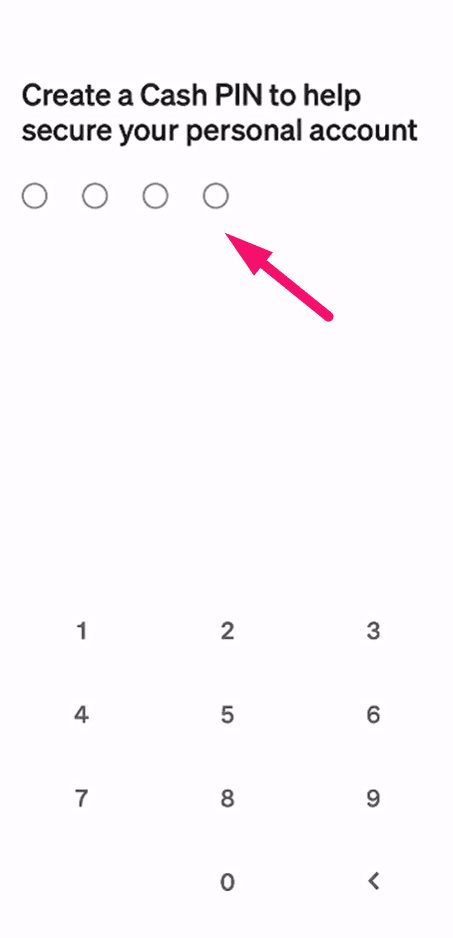
Create a personal PIN for security. You can skip optional steps like creating a Cashtag and enabling notifications.
Pro tip: Remember your PIN — you will need it to confirm transactions.
Buying Bitcoin
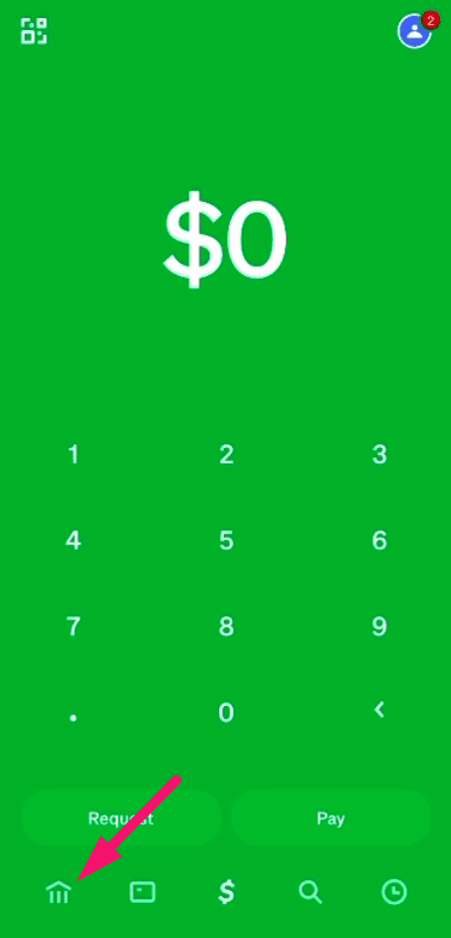
Go to the home screen and tap Bitcoin
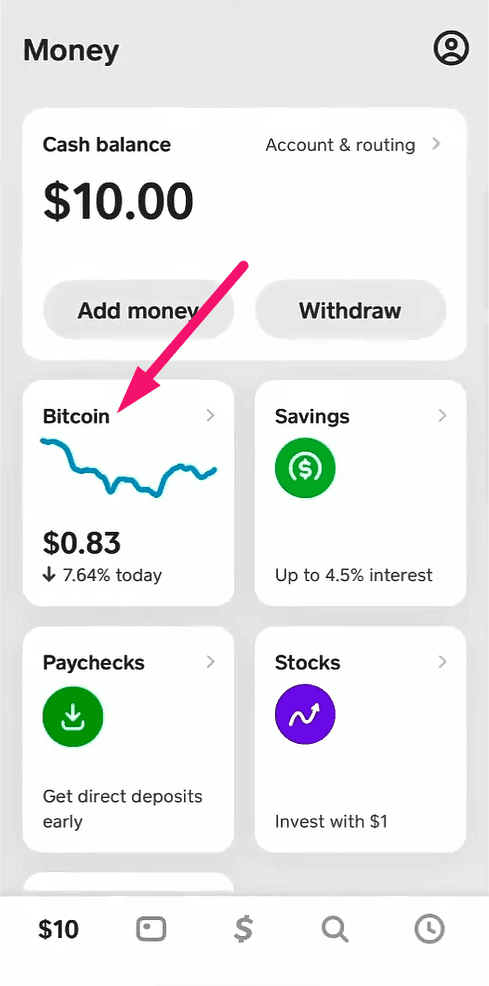
From the Cash App home screen, tap the home button at the bottom left, then tap the Bitcoin tile in the Money section.
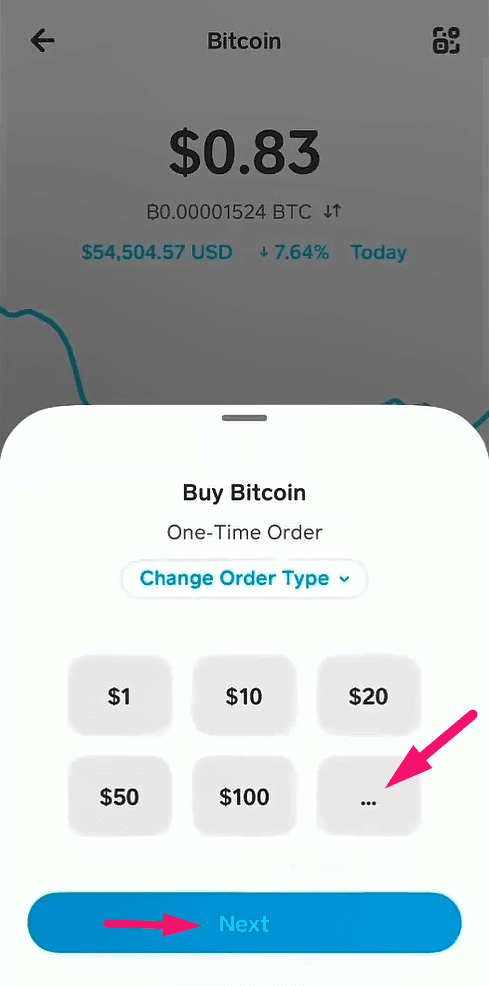
Tap Buy and enter the amount
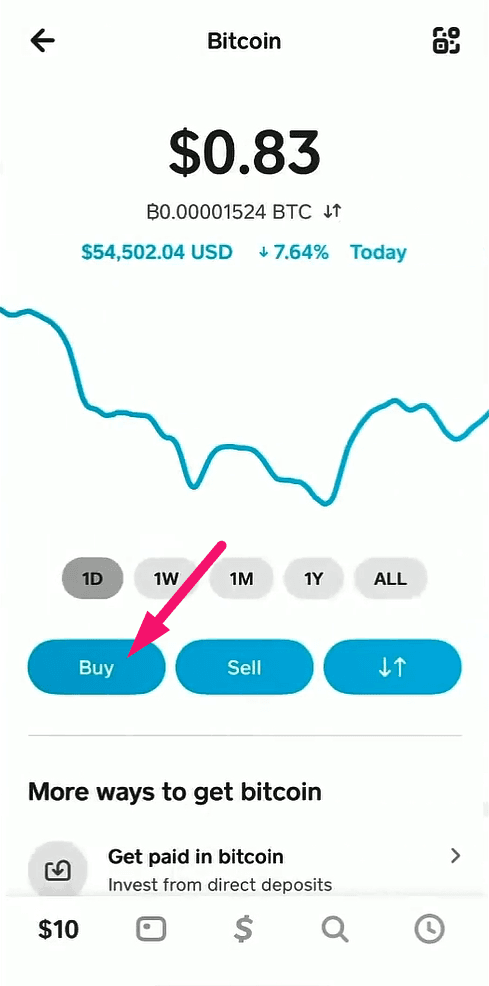
Press the Buy button, then tap the three dots to enter a custom dollar amount. Enter the price of your Apollo Group TV subscription plus about $5 extra for network fees.
Note: Bitcoin transaction fees are typically $2–5. Add this to your subscription amount to ensure the payment covers the full price.
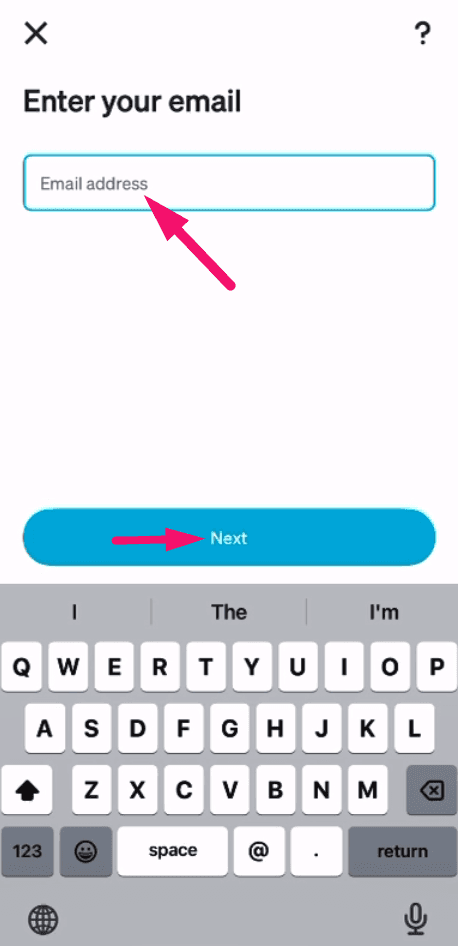
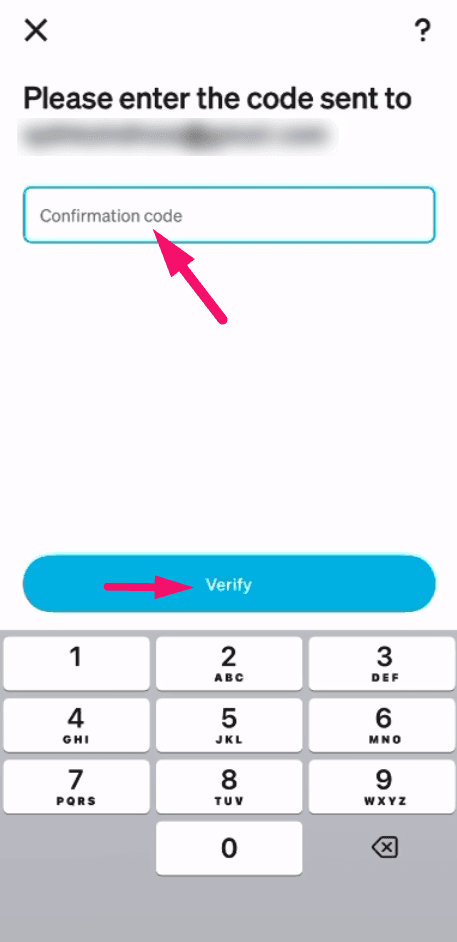
Verify your email
Enter your email address and verify it with the code sent to your inbox.
Complete identity verification
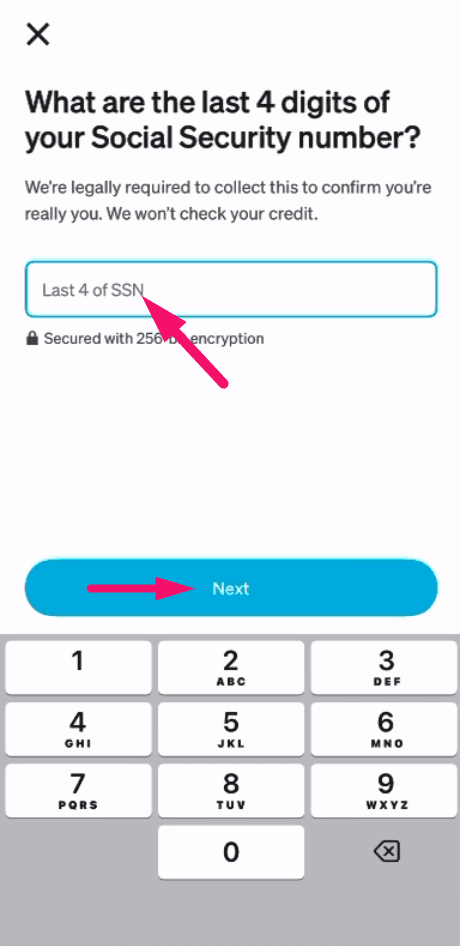
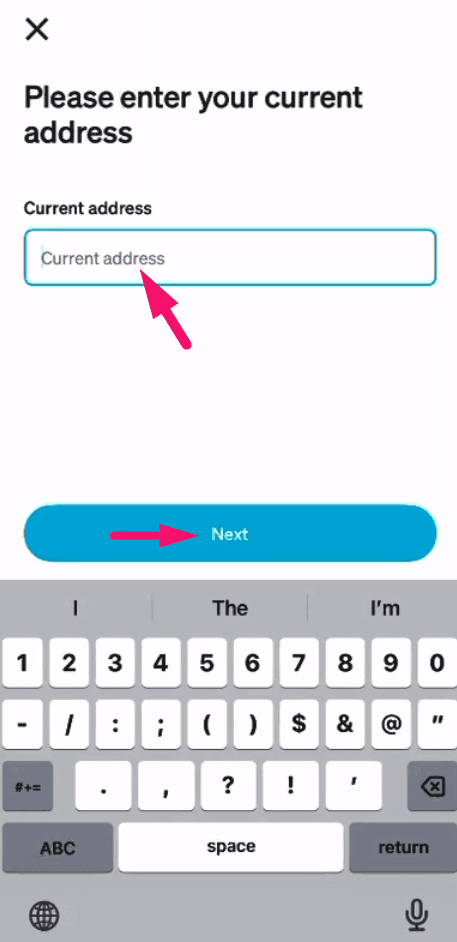
Enter the last 4 digits of your Social Security number, then fill in your current address including city, state, and ZIP code. This is required to enable Bitcoin features.
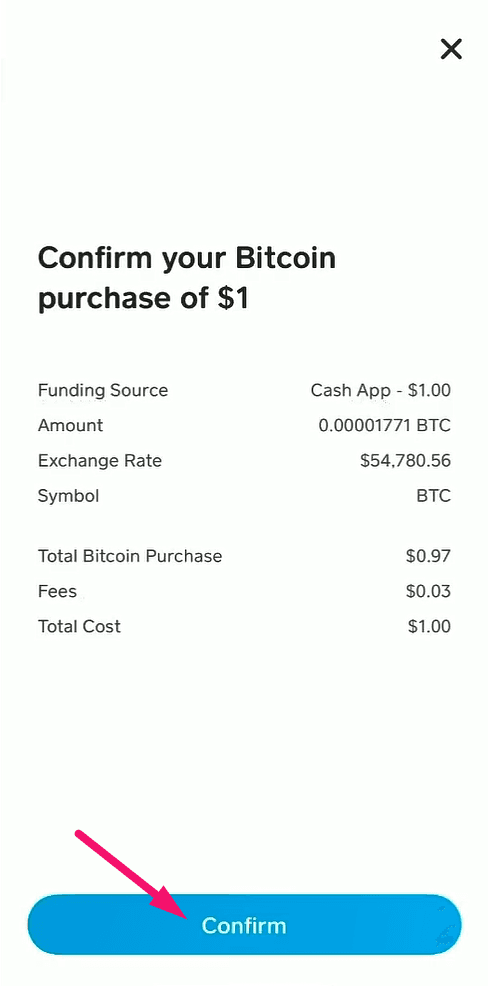
Confirm your Bitcoin purchase
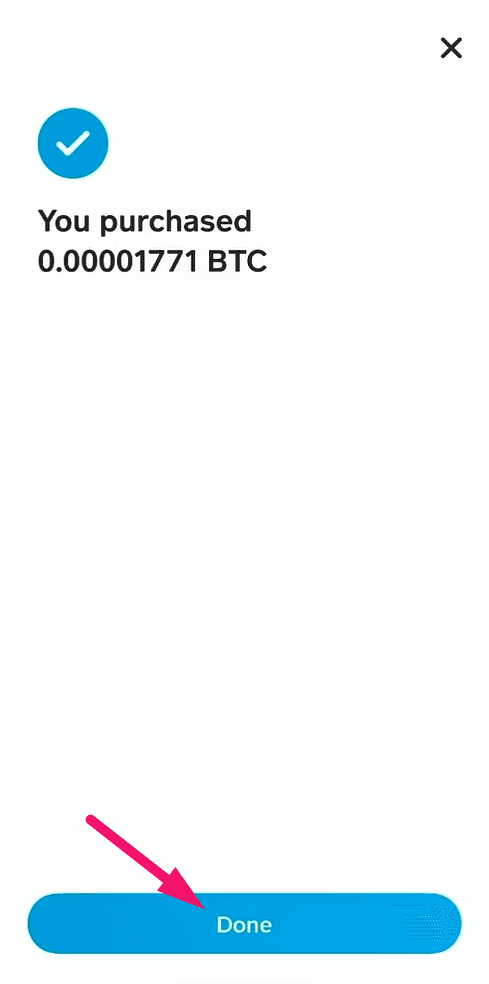
Review the purchase summary showing the funding source, Bitcoin amount, exchange rate, fees, and total cost. Tap Confirm to complete the purchase.
Sending your payment
Tap the transfer button
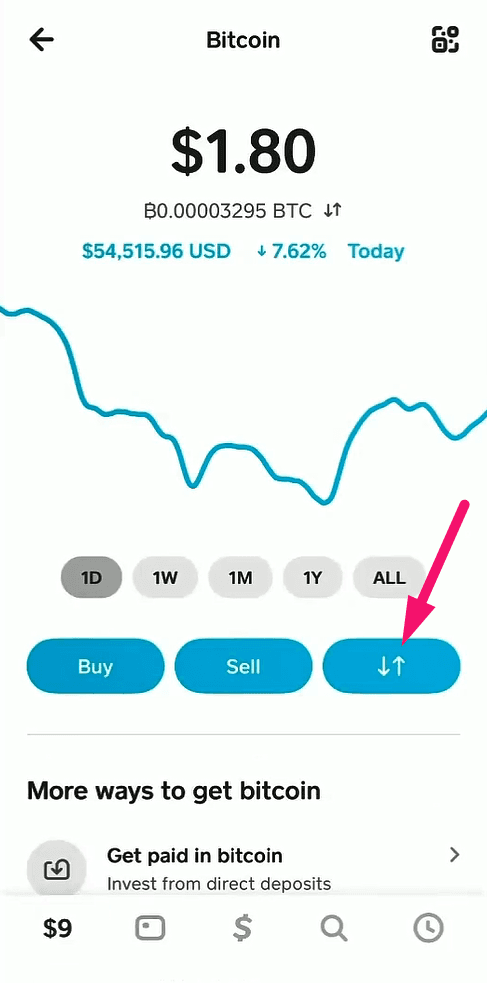
After your Bitcoin is purchased, you will see your BTC balance. Tap the transfer arrows button (the icon with up and down arrows).
Select Send Bitcoin
Choose Send Bitcoin from the transfer options to start sending to an external wallet.
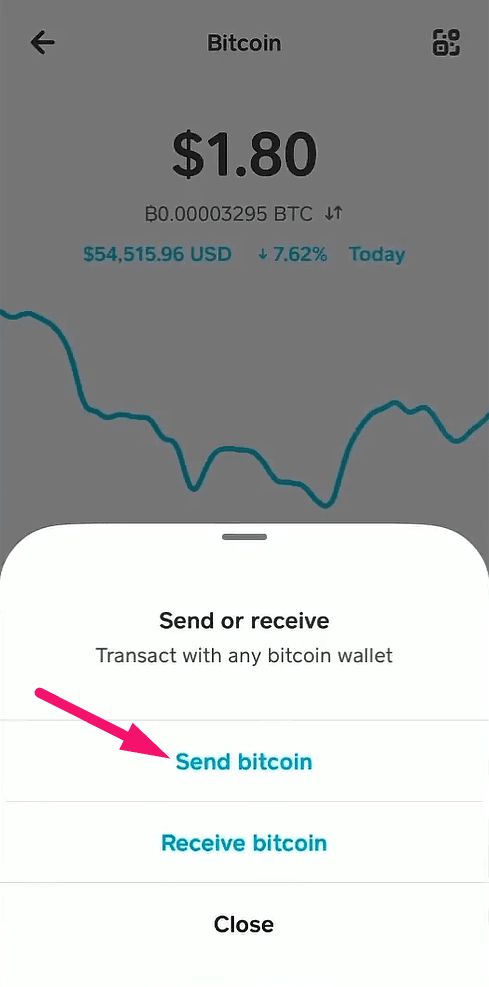
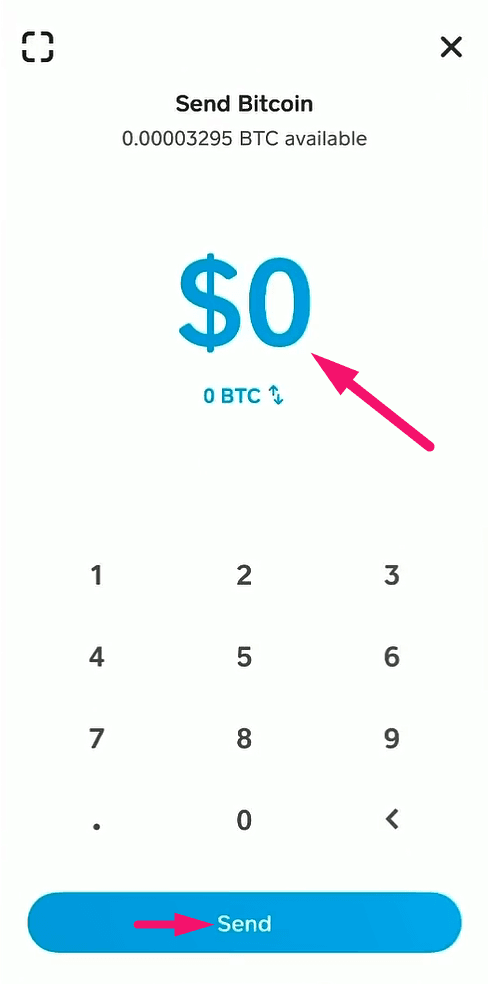
Enter the amount to send
On the Send Bitcoin screen, type the exact dollar amount or BTC amount shown on your Apollo Group TV payment invoice. Tap Send.
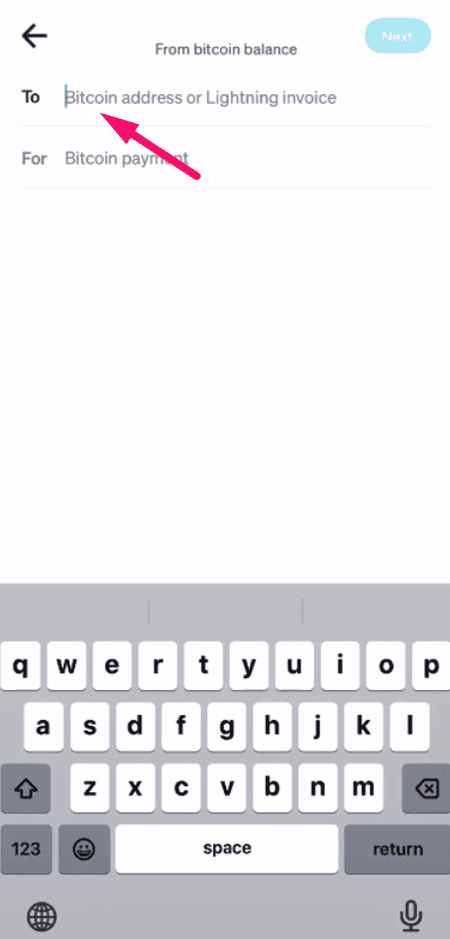
Paste the Bitcoin wallet address
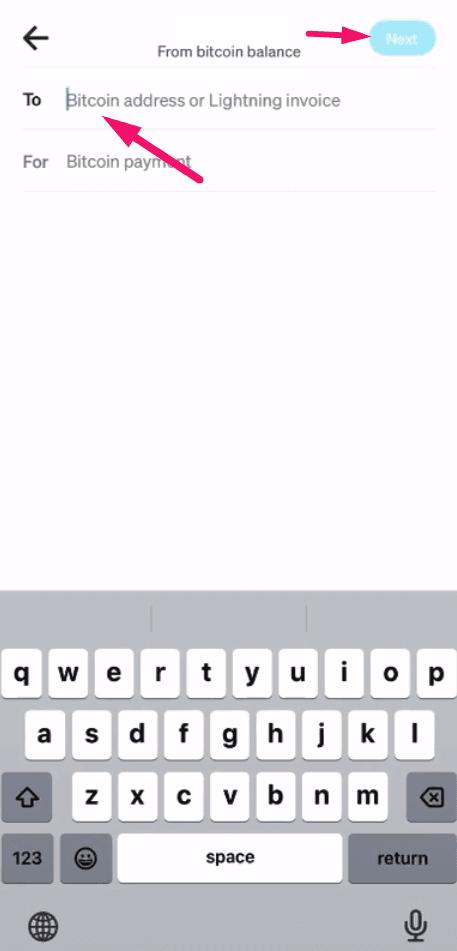
You will see a field that says 'Bitcoin address or Lightning invoice'. This is where you need to paste the wallet address from the Apollo payment page.
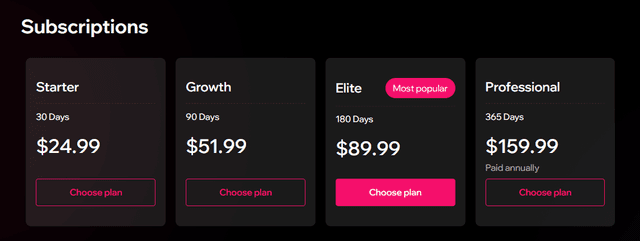
Go to the Apollo subscription page
Log in to the Apollo Group TV website and go to the subscription page. Click Choose Plan under the package you want to purchase.
Select Cash App as your payment method
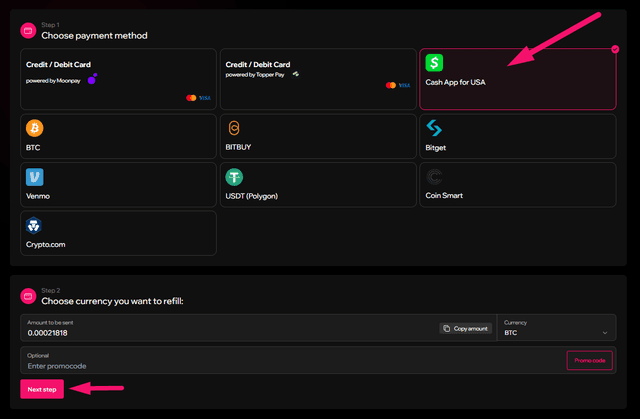
Choose the Cash App for USA payment method, review the Bitcoin amount to send, and click Next Step.
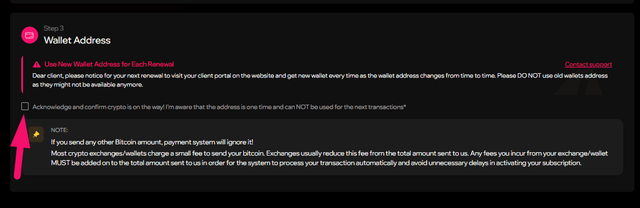
Acknowledge and get the wallet address
Check the box to acknowledge that the address is one-time use. Read the important note about Bitcoin fees — add extra to cover them.
Note: Each wallet address is unique and one-time only. Do NOT reuse old addresses for future transactions.
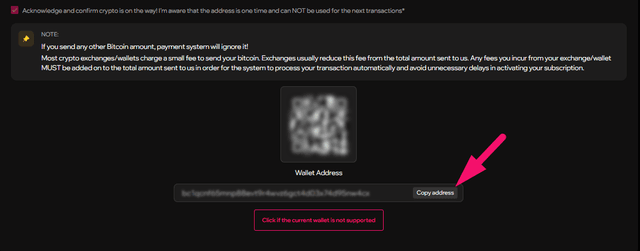
Copy the Bitcoin wallet address
After checking the box, you will see your unique Bitcoin wallet address and QR code. Click Copy Address to copy it. If the address is not supported by Cash App, click the alternative wallet button.
Pro tip: If Cash App says the wallet is not supported, click 'Click if the current wallet is not supported' to get a Legacy address.
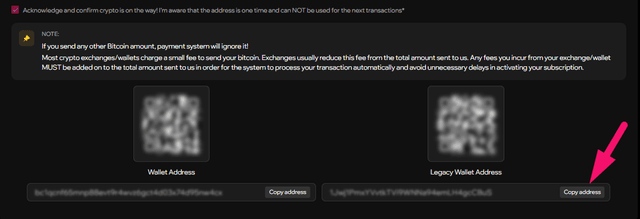
Use alternative wallet if needed
If the first address was not supported, you will see both the original Wallet Address and a Legacy Wallet Address. Copy the Legacy address instead.
Paste the address in Cash App
Go back to Cash App and paste the Bitcoin wallet address you copied from the Apollo payment page. Tap Next.
Complete identity verification
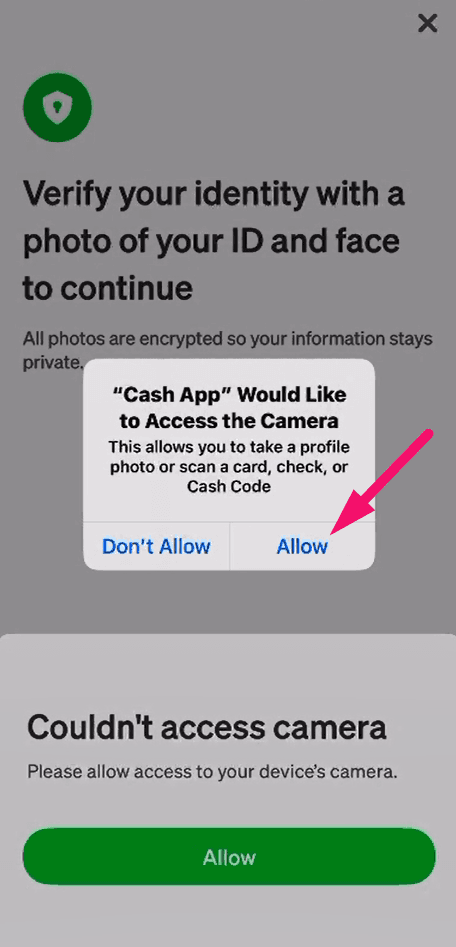
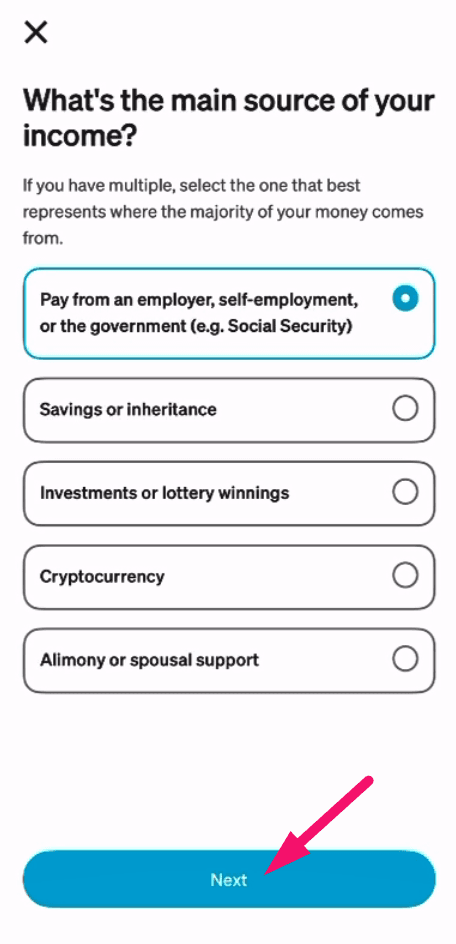
If this is your first time sending Bitcoin, Cash App will ask to verify your identity. Allow camera access, take photos of your government ID (front and back), and answer the security questions about your income source and occupation.
Select withdrawal speed
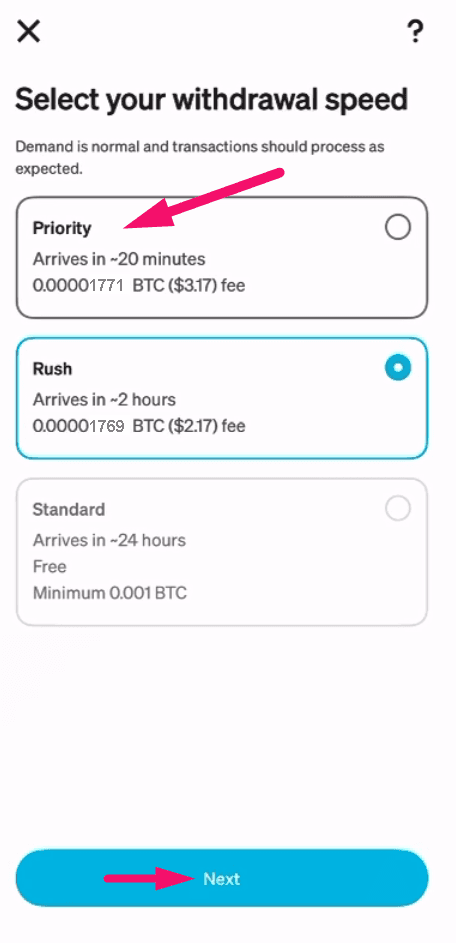
Choose your transfer speed: Priority (~20 minutes, ~$3 fee), Rush (~2 hours, ~$2 fee), or Standard (~24 hours, free). We recommend Priority for the fastest activation.
Pro tip: Choose Priority to get your subscription activated within 20 minutes.
Confirm and send
Review all the details one final time and tap Confirm & Send. Your Bitcoin payment is now on its way.
Note: Double-check the wallet address before confirming. Bitcoin transactions cannot be reversed.
What happens next?
Once your Bitcoin payment is confirmed on the blockchain (usually within 10–30 minutes with Priority speed), your Apollo Group TV subscription activates automatically. You will receive a confirmation email with your login credentials and setup instructions.
Frequently asked questions
Priority transfers typically confirm within 10–30 minutes. Standard transfers can take up to an hour. Your Apollo Group TV subscription activates automatically once the payment is confirmed on the blockchain.
Other payment guides
Venmo
Buy in the Crypto tab and send to Apollo.
~12 minutes · US Only
Shakepay
Canadian users — Interac e-Transfer + Bitcoin.
~15 minutes · Canada Only
MoonPay
Fastest worldwide. Debit, credit, or Apple Pay.
~8 minutes · Worldwide
Credit / Debit Card
Compare top platforms, follow the quickest path.
~5 minutes · Worldwide
Ready to subscribe?
Get instant access to 22,000+ live channels, 90,000+ movies and shows, and premium sports content.
Subscribe to Apollo Group TVWant to compare tiers first? See all plans or talk to support.