How to buy Bitcoin with Shakepay
Shakepay is the easiest way for Canadians to buy Bitcoin using Interac e-Transfer. This guide covers everything from creating your account to sending Bitcoin to pay for your Apollo Group TV subscription. The full process takes about 15 minutes for new users, or 5 minutes if you already have a funded Shakepay account.
What you need
- Canadian bank account with Interac e-Transfer
- Government-issued photo ID
- Canadian phone number
Step-by-step instructions
Creating your account
Download Shakepay
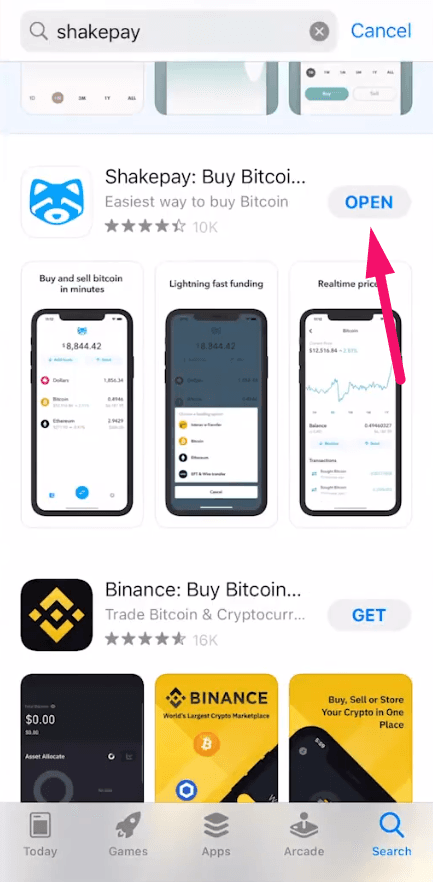
Go to the App Store or Google Play Store, search for Shakepay, and install it.
Create your account
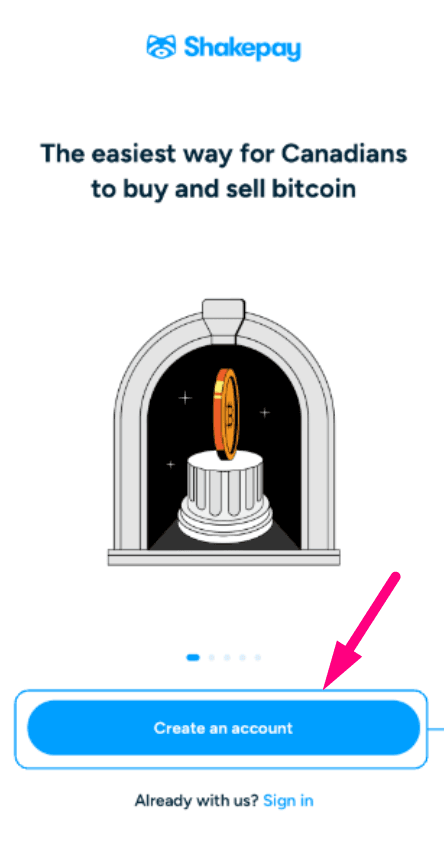
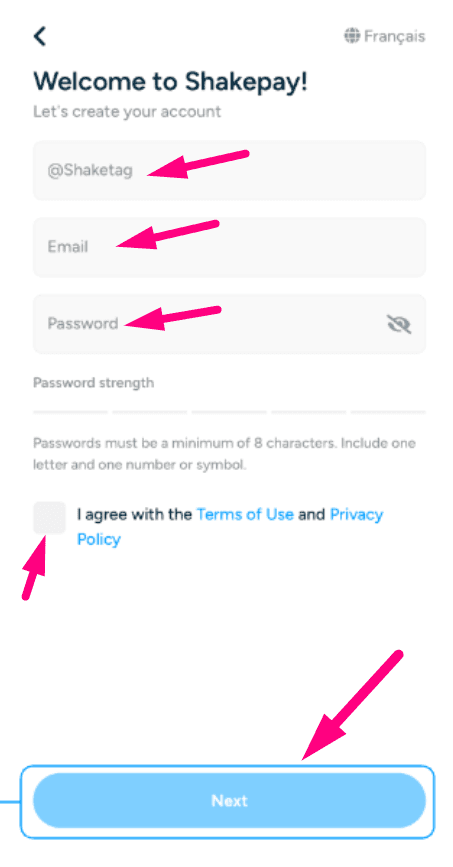
Tap Create an Account. Enter a Shaketag (username), your email address, and create a password. Agree to the terms and tap Next.
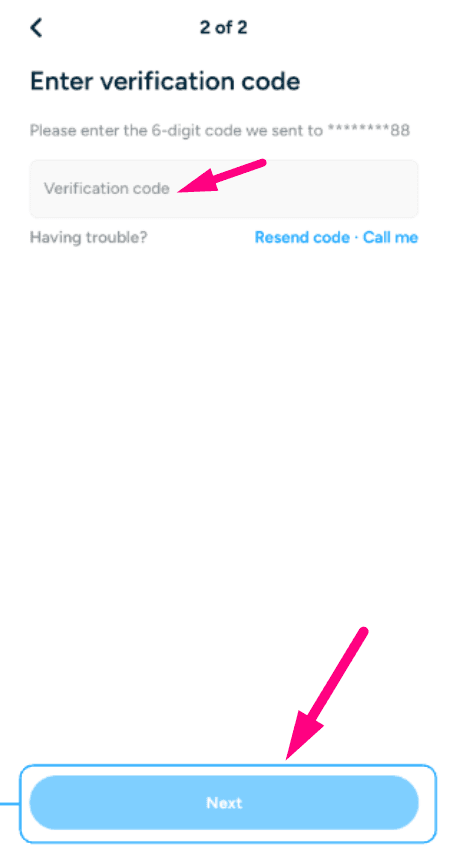
Verify your phone number
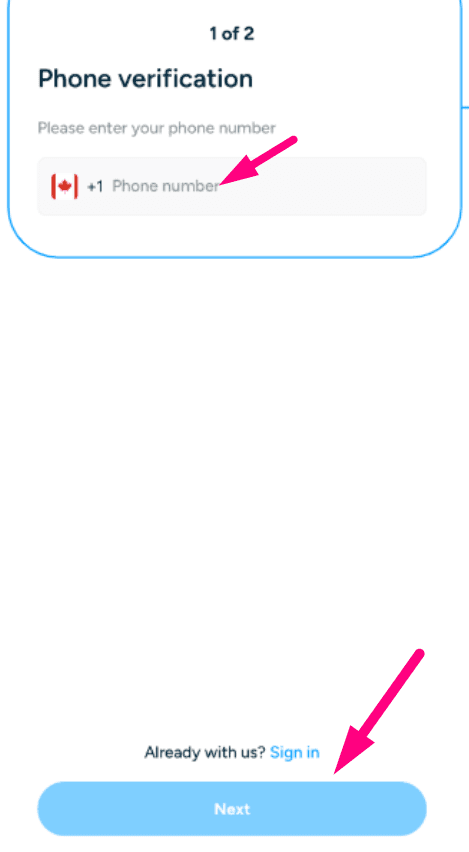
Enter your Canadian phone number and verify with the SMS code sent to your phone.
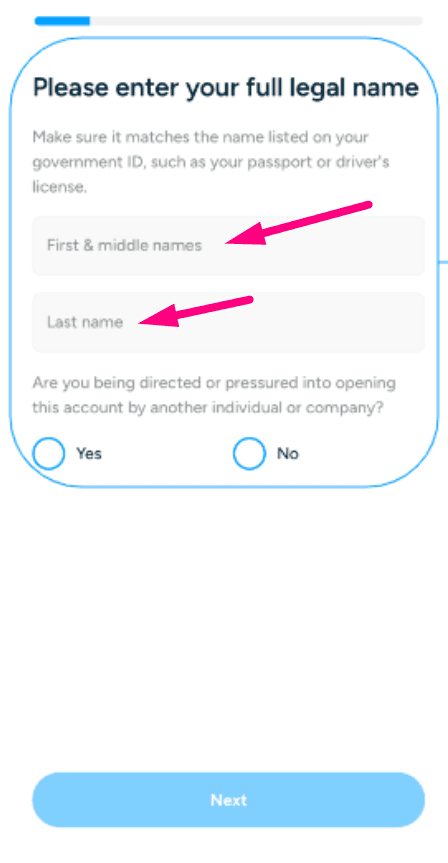
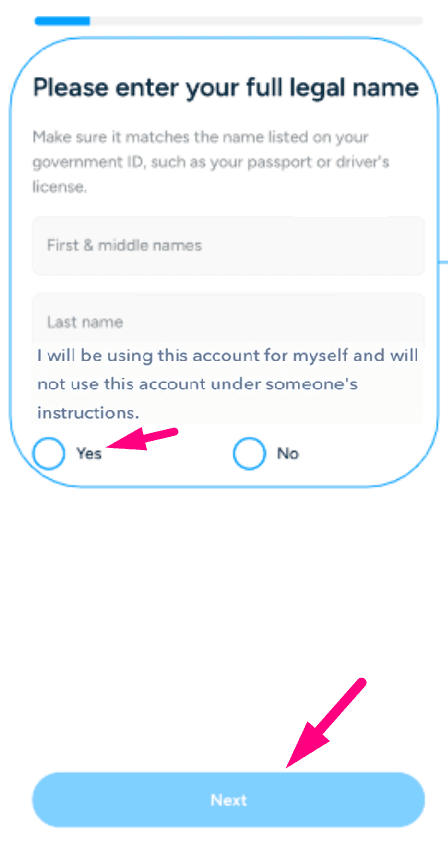
Enter your personal details
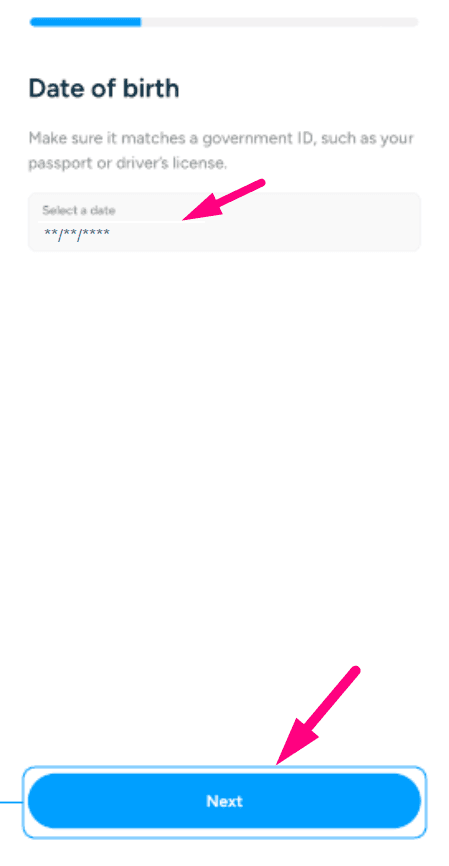
Fill in your legal first and last name. Select 'No' when asked if you are being pressured, or 'Yes' to confirm you are using the account for yourself. Then enter your date of birth.
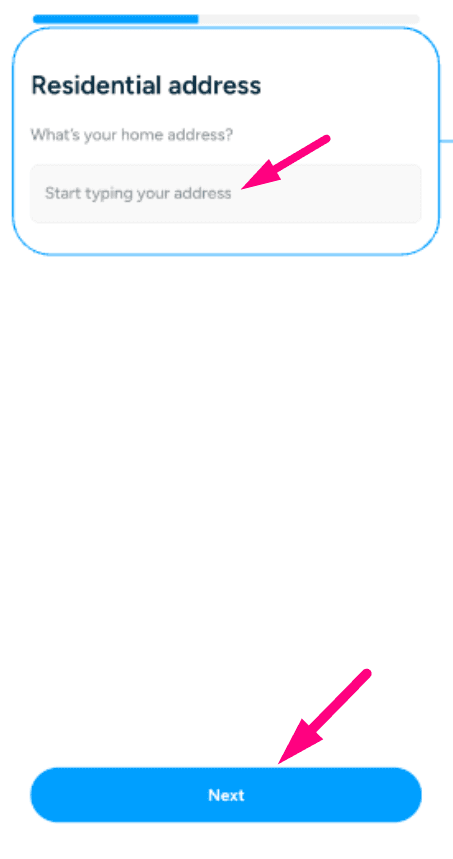
Enter your address and occupation
Fill in your residential address and select your occupation from the list.
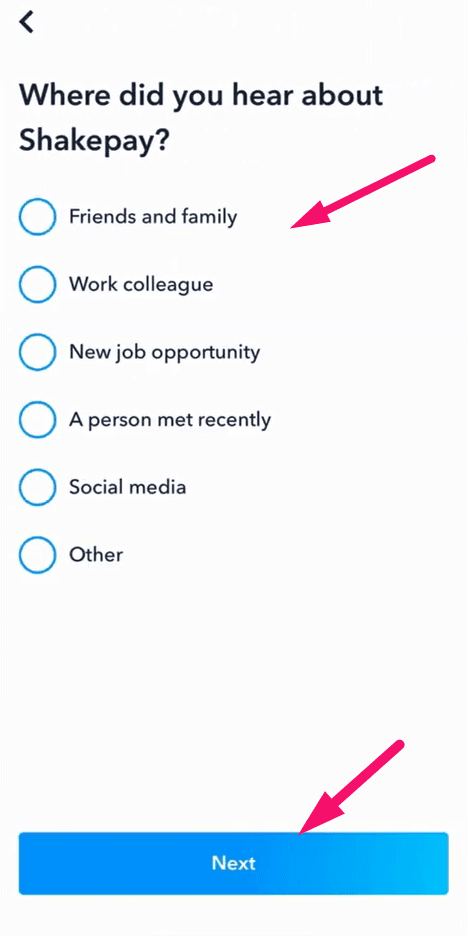
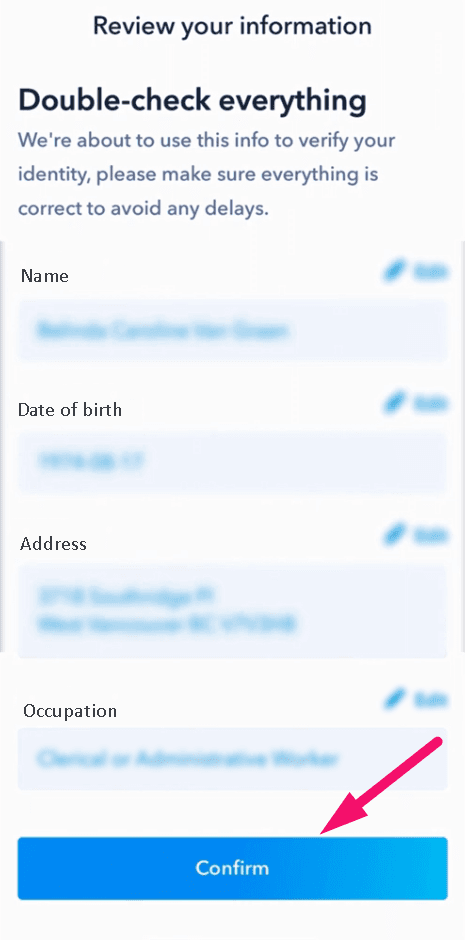
Choose your account purpose and review
Select how you plan to use Shakepay, then review all your information and tap Confirm.
Identity verification (KYC)
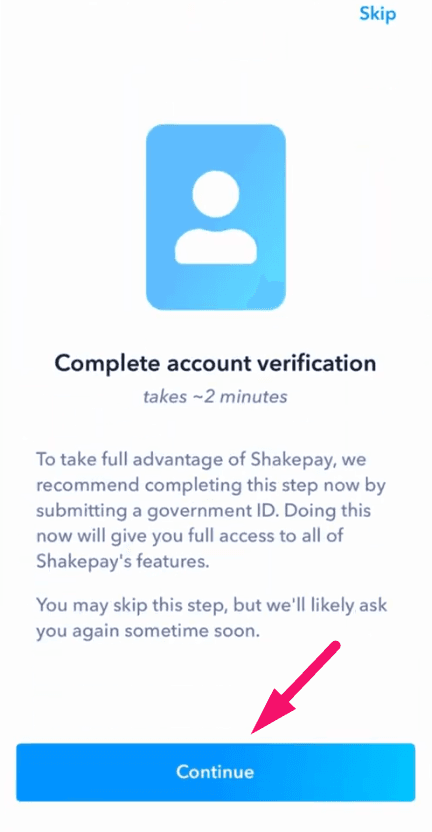
Start identity verification
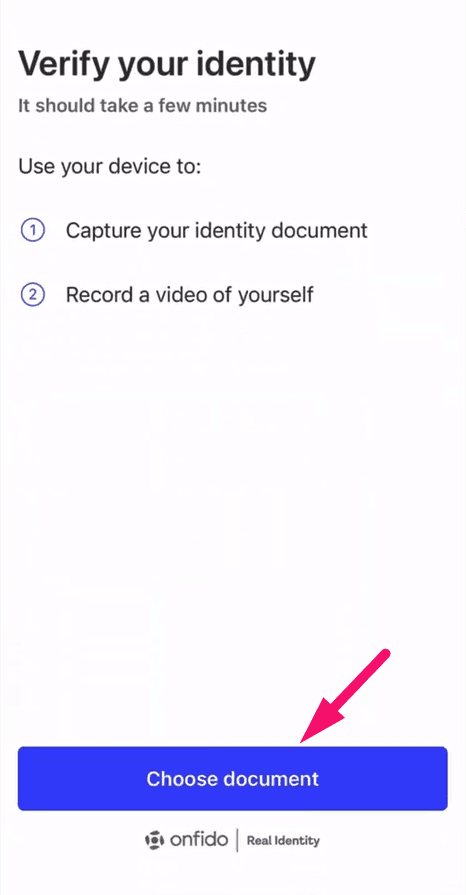
Tap Continue to begin KYC. Choose your document type (driver's license, passport, or national ID) and select the issuing country.
Upload your ID photos
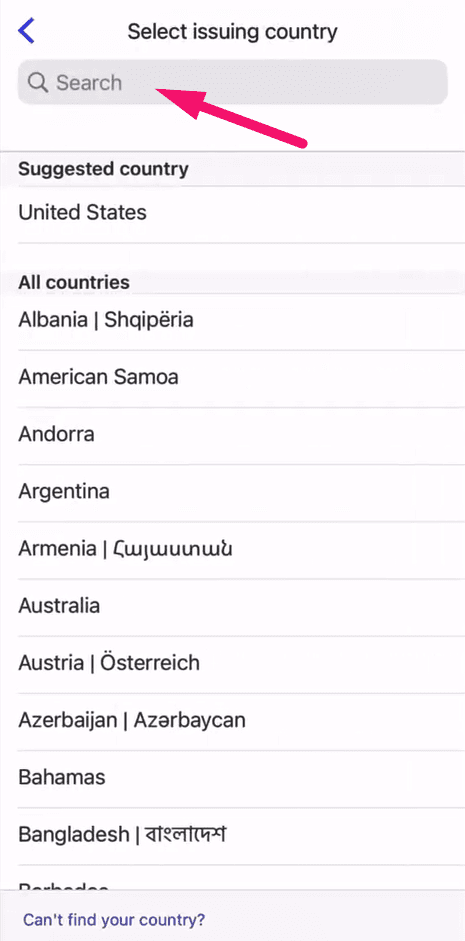
Enable camera access, then take clear photos of the front and back of your ID document and tap Submit photo.
Pro tip: Make sure you have good lighting and the entire document is visible.
Complete video selfie verification
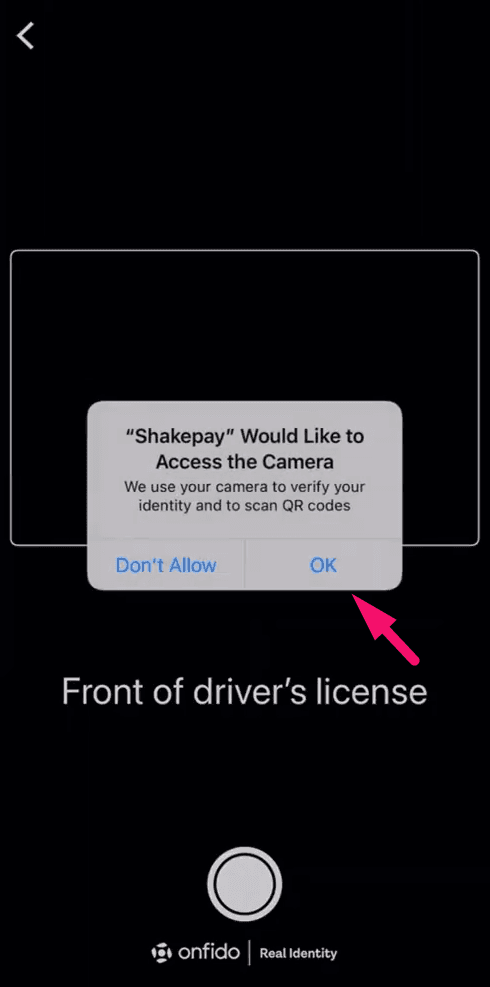
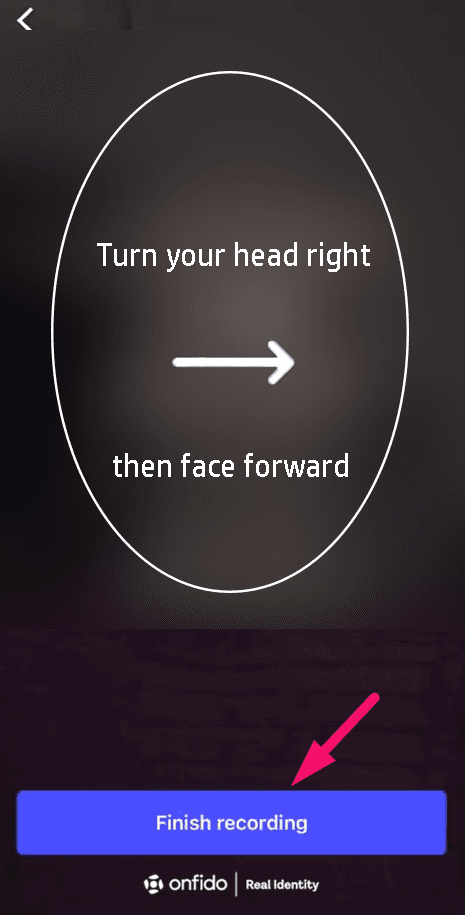
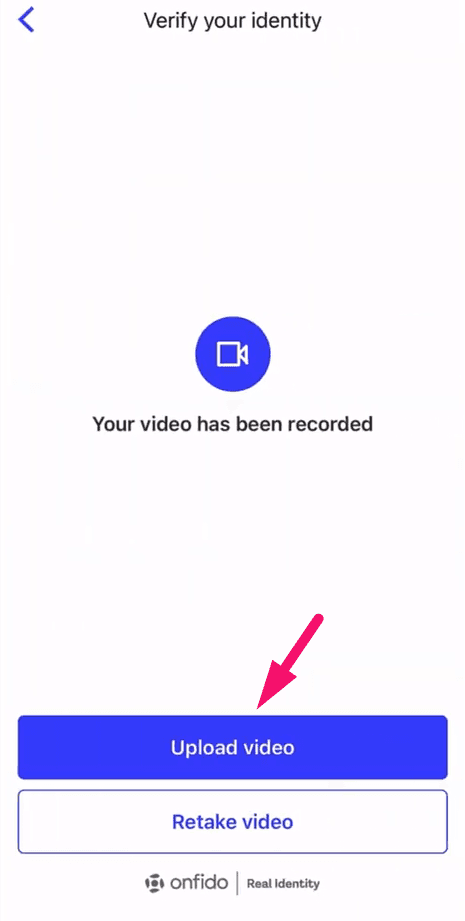
Record a short video selfie — you will need to say each digit shown on screen out loud, then turn your head as instructed. Tap Finish recording and Upload video.
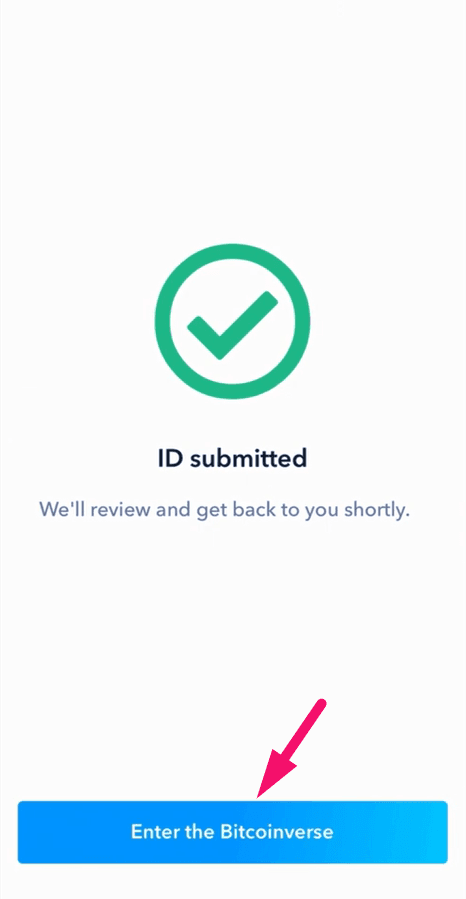
Enter the Bitcoinverse
Once your ID is submitted and approved, tap Enter the Bitcoinverse to access your Shakepay account.
Adding funds & buying Bitcoin
Add funds via Interac e-Transfer
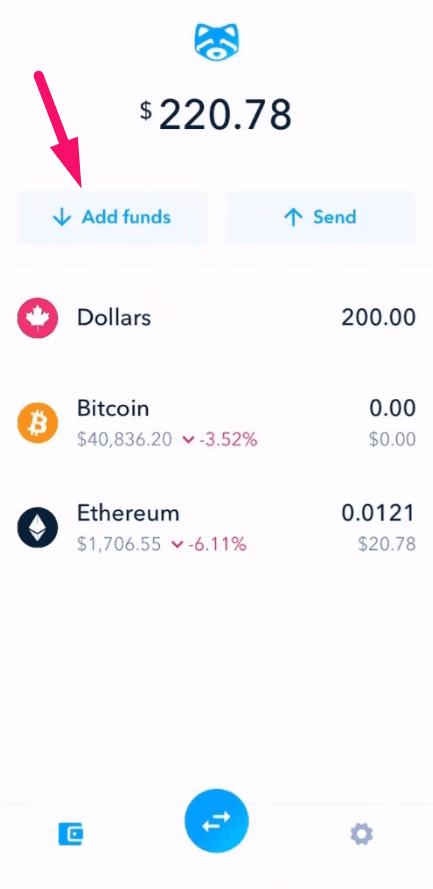
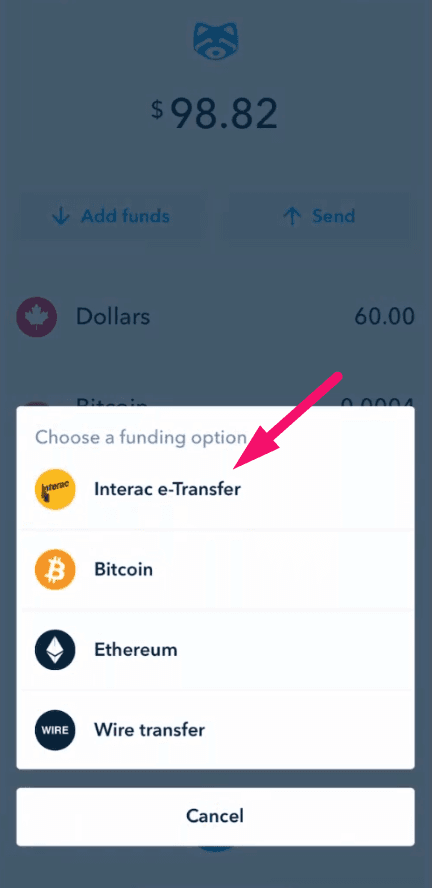
From the home screen, tap Add Funds. Select Interac e-Transfer and tap I Understand. Use the information displayed to send an e-Transfer from your banking app.
Note: Bitcoin transaction fees could be around $5 CAD extra. Add this to your subscription amount.
Buy Bitcoin
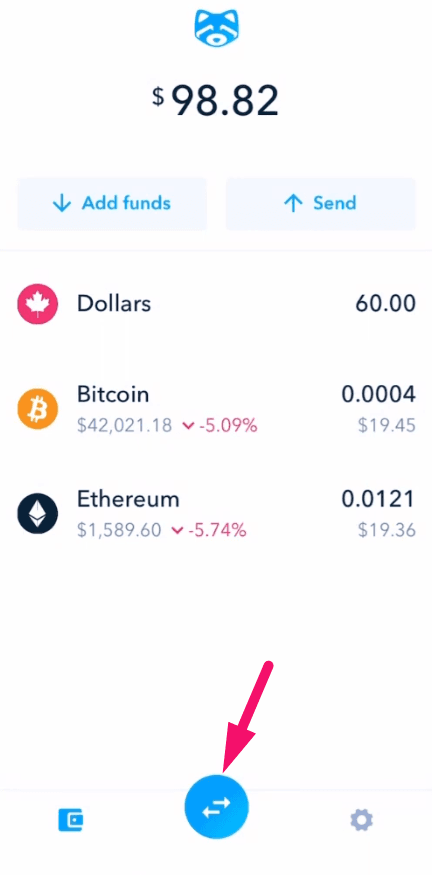
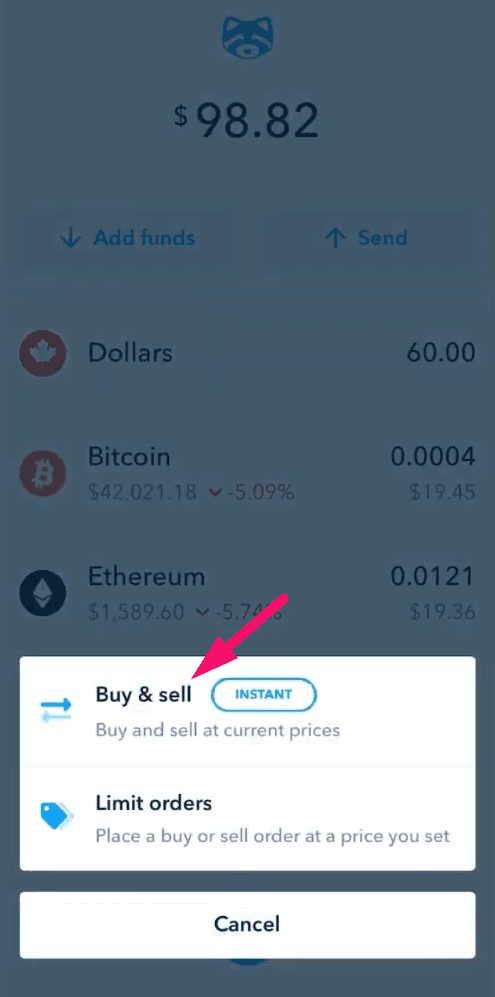
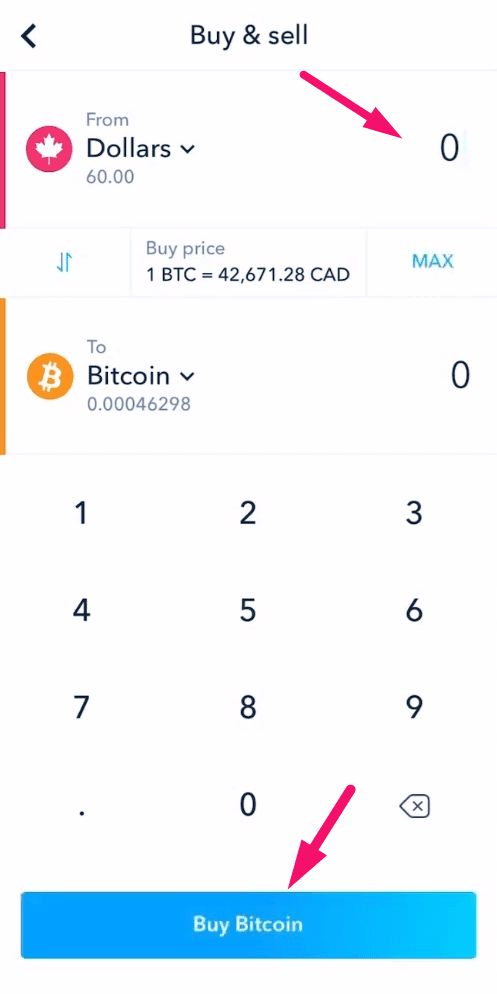
Once your funds arrive, tap the exchange arrows icon at the bottom. Select Buy & Sell, then enter the dollar amount for your subscription plus fees. Tap Buy Bitcoin and Confirm.
Sending your payment
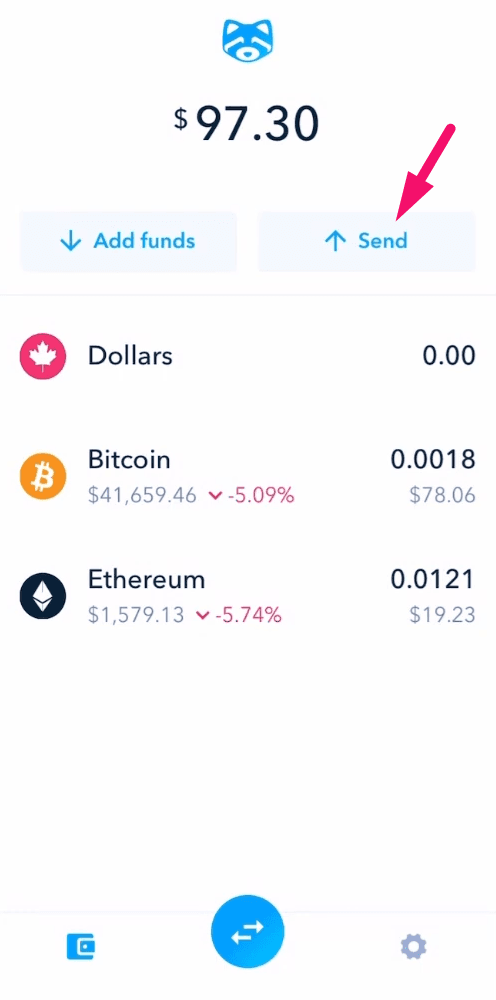
Tap Send
From the Shakepay home screen, tap the Send button at the top right.
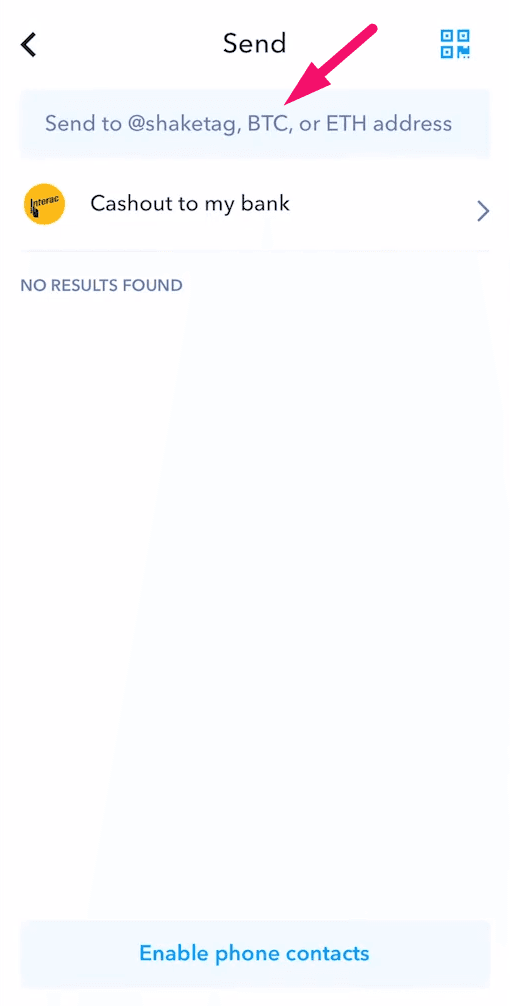
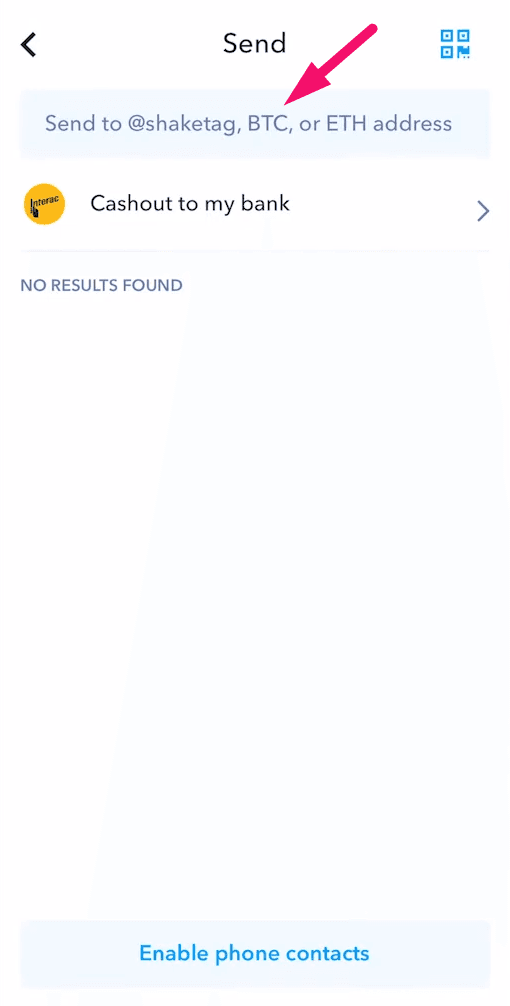
Enter the BTC address field
Tap the 'Send to @shaketag, BTC, or ETH address' field. This is where you will paste the Bitcoin address from Apollo.
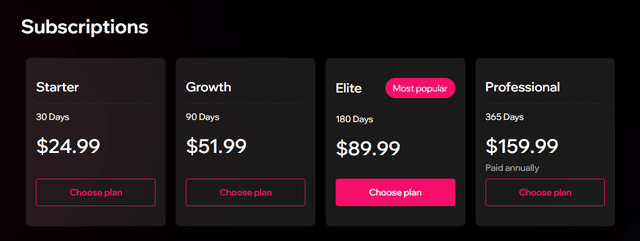
Get your Apollo payment address
Log in to Apollo Group TV, go to the subscription page, select your plan, and choose the Shakepay payment method. Click Next Step.
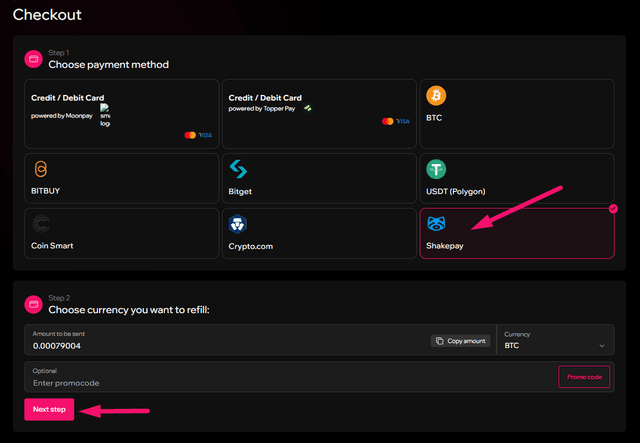
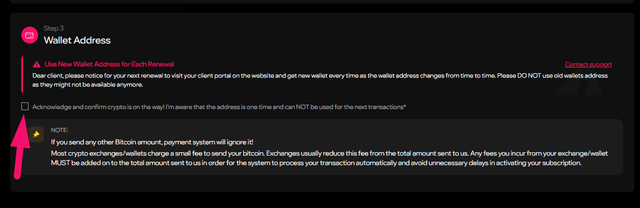
Acknowledge and copy the wallet address
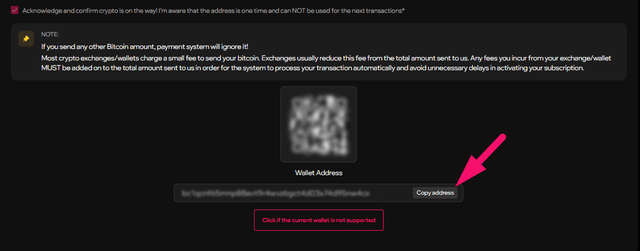
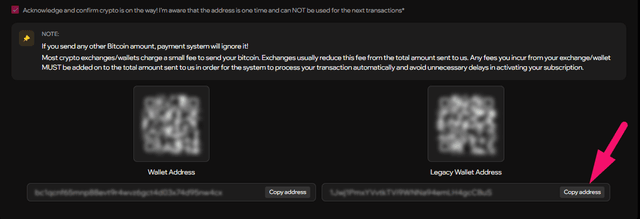
Check the acknowledgment box confirming the address is one-time use. Copy the Bitcoin wallet address shown. If Shakepay does not support the address, click 'Click if the current wallet is not supported' and copy the Legacy address instead.
Pro tip: If Shakepay shows the address is not supported, use the Legacy Wallet Address.
Paste address in Shakepay and confirm
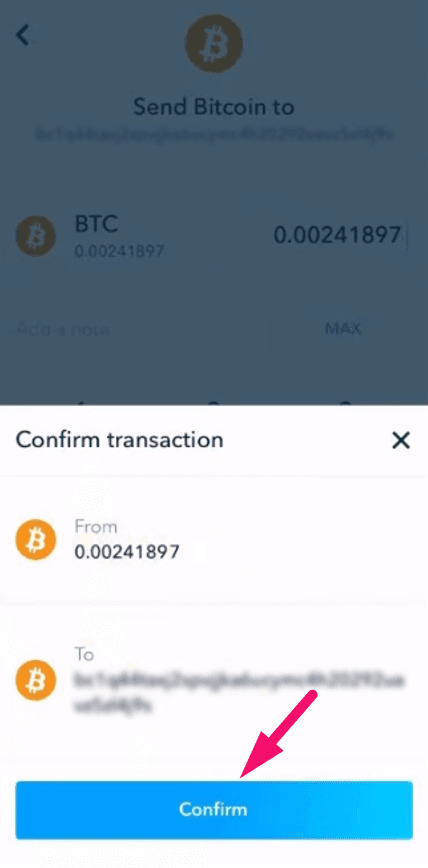
Go back to Shakepay and paste the wallet address you copied. Enter the subscription amount and tap Continue, then Confirm to send.
Note: Double-check the wallet address before confirming. Bitcoin transactions cannot be reversed.
Wait for confirmation
Your Bitcoin transaction will be confirmed on the blockchain within 10–30 minutes. Your Apollo Group TV subscription activates automatically once confirmed.
What happens next?
Once confirmed, your Apollo Group TV subscription activates automatically. Check your email for login credentials and setup instructions.
Frequently asked questions
No, Shakepay is exclusively for Canadian residents. If you are outside Canada, try Cash App (US), Venmo (US), or MoonPay (global).
Other payment guides
Ready to subscribe?
Get instant access to 22,000+ live channels, 90,000+ movies and shows, and premium sports content.
Subscribe to Apollo Group TVWant to compare tiers first? See all plans or talk to support.