How to buy Bitcoin on Venmo
Venmo makes buying and sending Bitcoin straightforward. This guide walks you through every step — from downloading the app to completing your Apollo Group TV subscription payment. Already have Venmo with crypto enabled? Skip ahead to the buying section — it takes about 5 minutes from there.
What you need
- Venmo app installed
- A US phone number and debit card
- Government ID for verification
Step-by-step instructions
Setting up Venmo
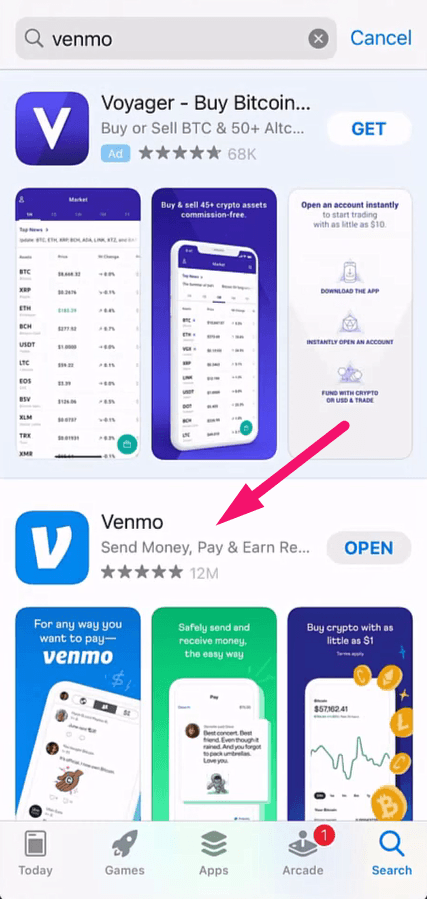
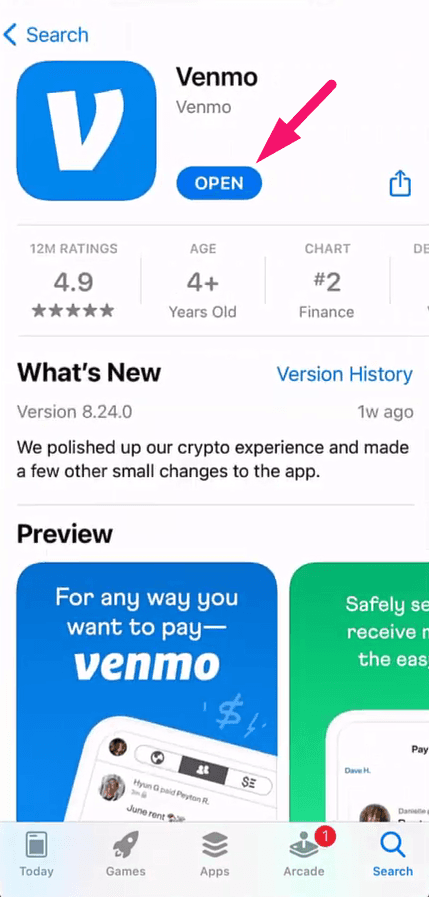
Download and open Venmo
Get Venmo from the App Store or Google Play Store. Open it and tap through the introduction screens.
Create your account
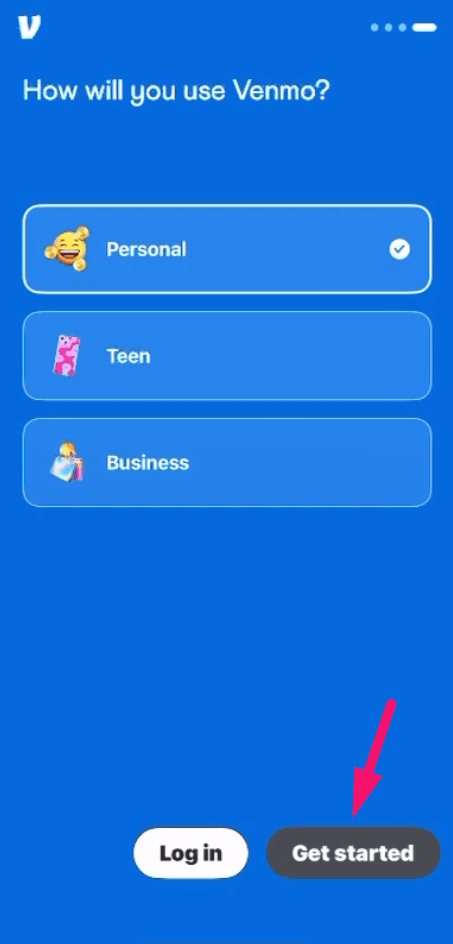
Select Personal account, enter your phone number, and verify with the SMS code. Fill in your legal name and email.

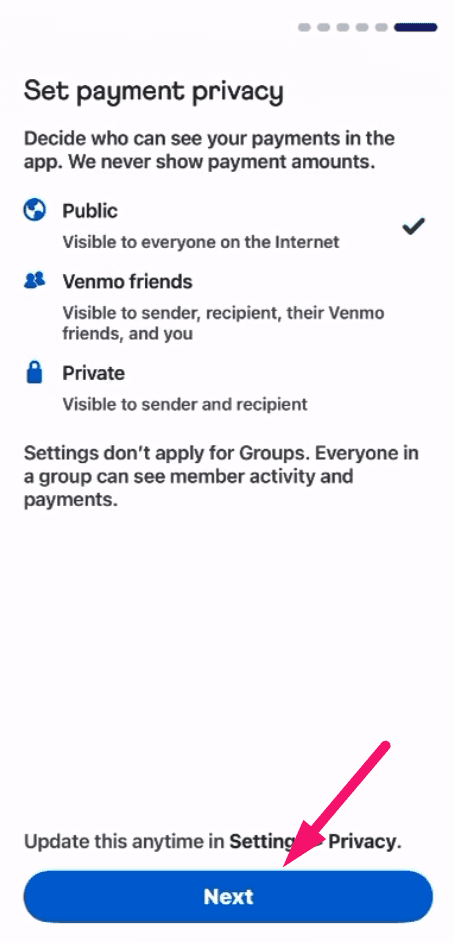
Set privacy and agree to terms
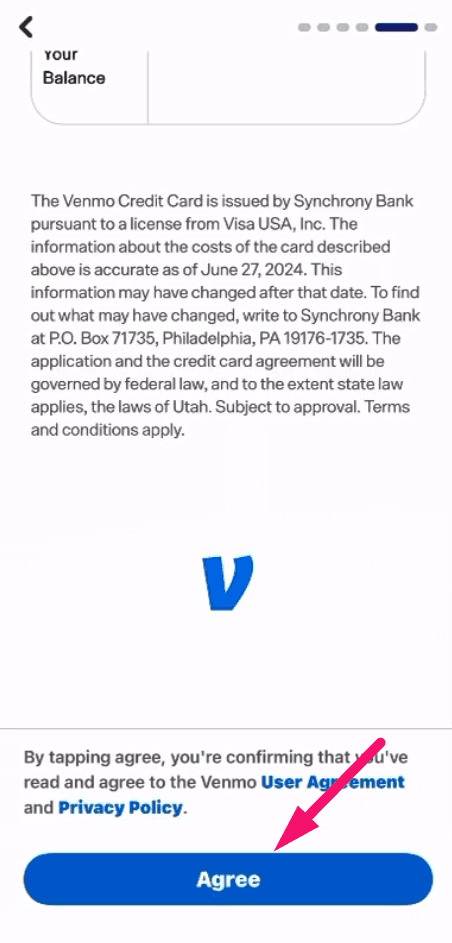
Choose your privacy setting (Public, Friends, or Private), scroll down and tap Agree to accept the terms.
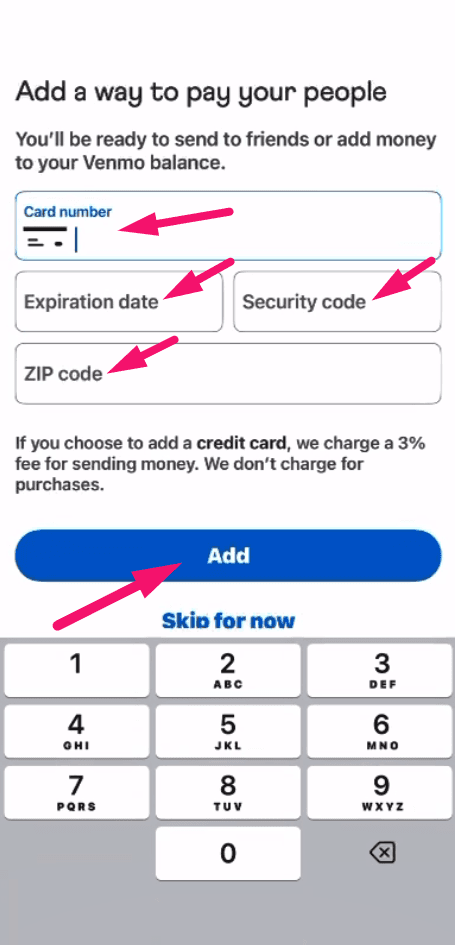
Link your debit card
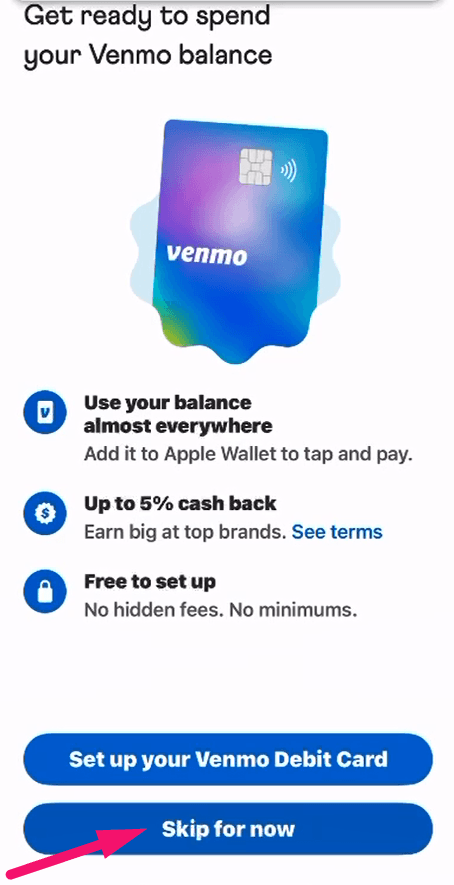
Add your debit card details to fund your crypto purchases. Skip optional steps like the Venmo card offer.
Buying Bitcoin
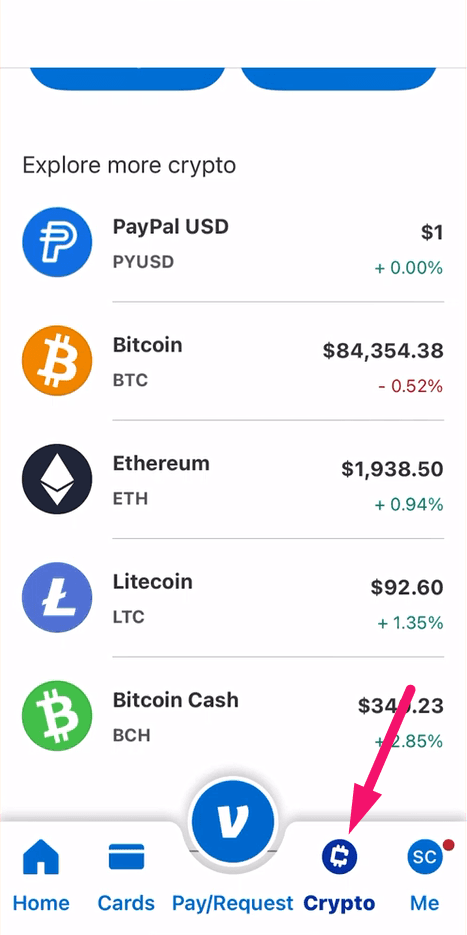
Navigate to the Crypto tab
Tap the Crypto tab at the bottom of the Venmo home screen to access cryptocurrency features.
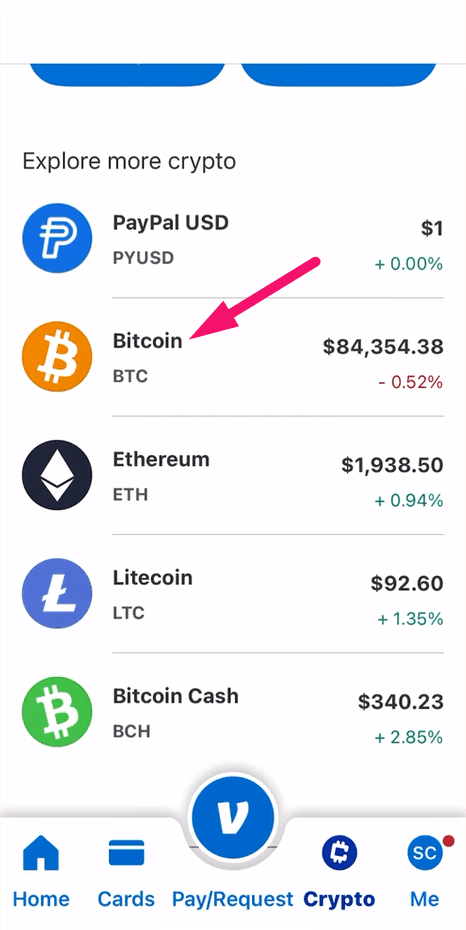
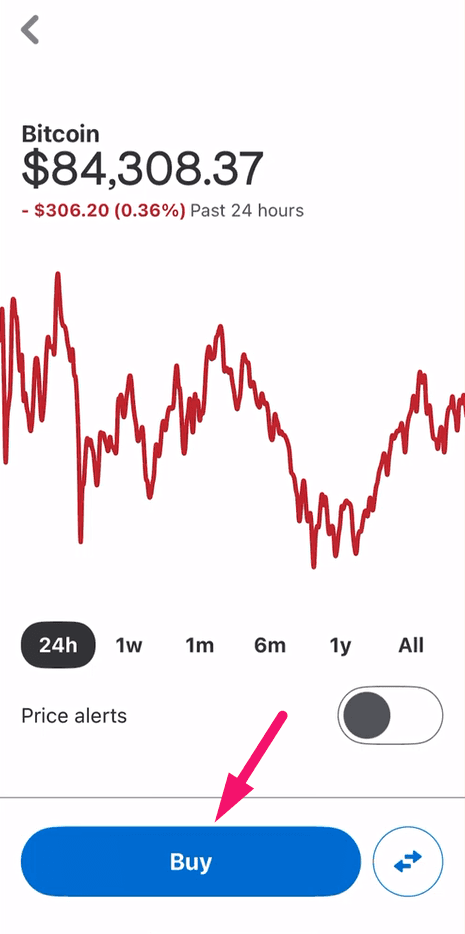
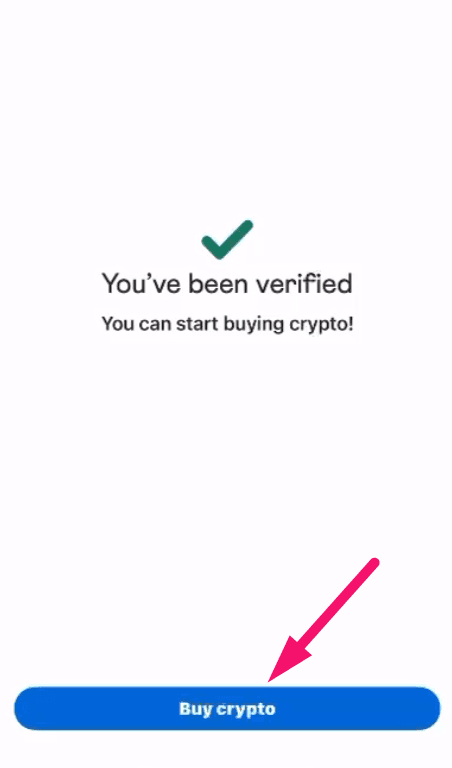
Select Bitcoin and tap Buy
Tap on Bitcoin from the crypto list, then press the Buy button.
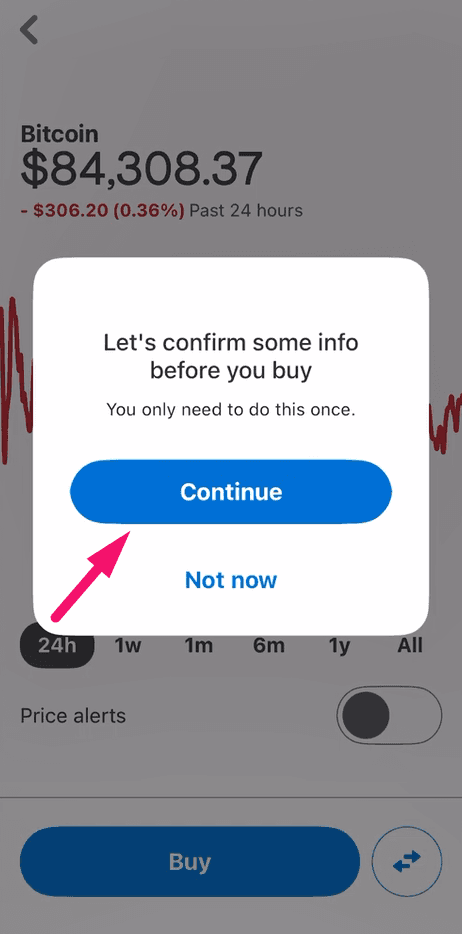
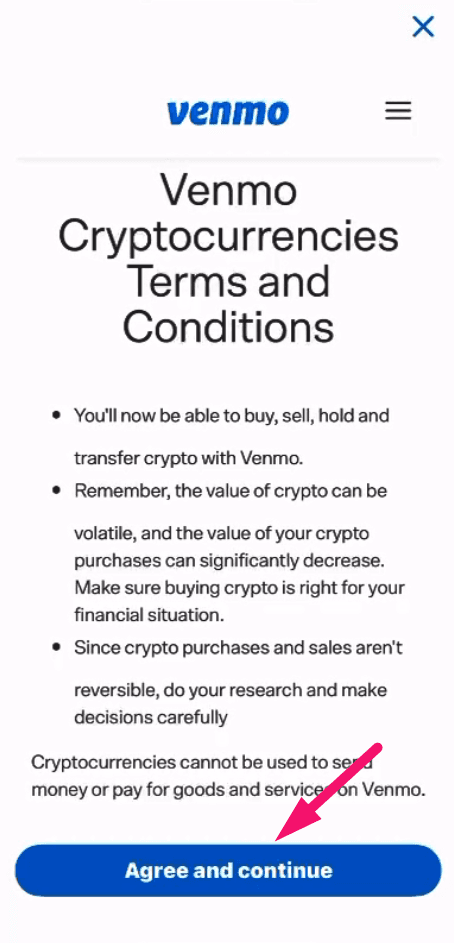
Agree to crypto terms
Read and accept Venmo's cryptocurrency terms by tapping Agree and Continue.
Enter the amount and buy
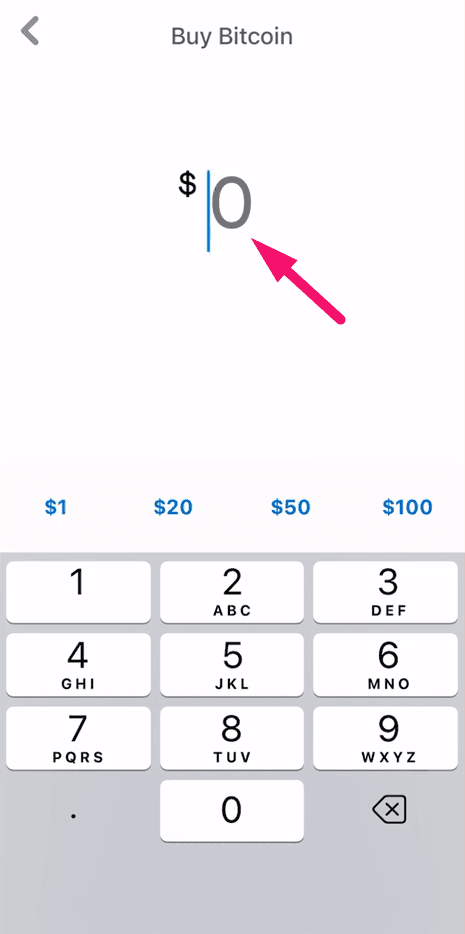
Type the dollar amount matching your Apollo Group TV subscription plus about $5 for fees. Choose your payment method and tap Buy Bitcoin.
Note: Add approximately $5 extra to cover the Bitcoin network fee when sending.
Sending your payment
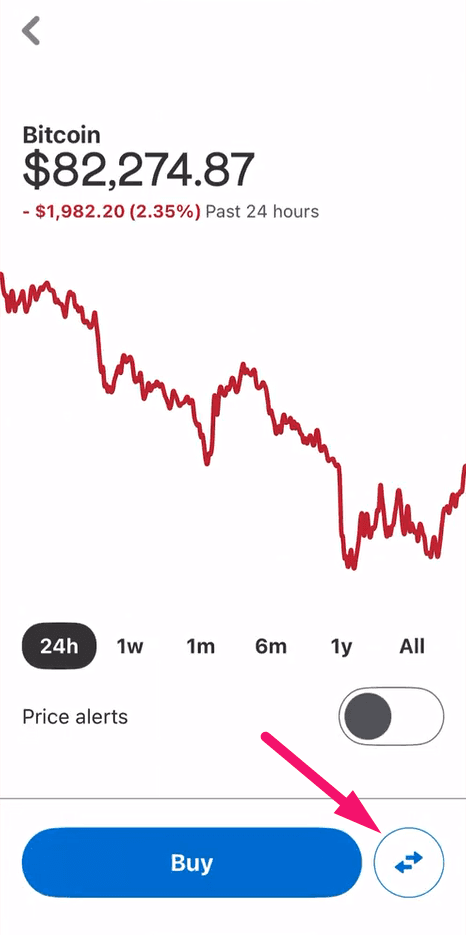
Tap the transfer button
On your Bitcoin balance screen, tap the transfer arrows icon to send Bitcoin.
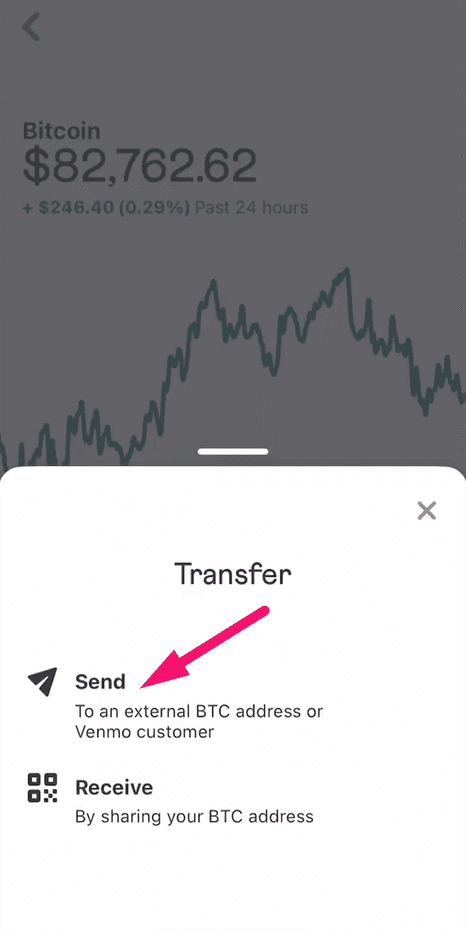
Tap Send
Select Send to transfer Bitcoin to an external wallet address.
Go to the Apollo subscription page
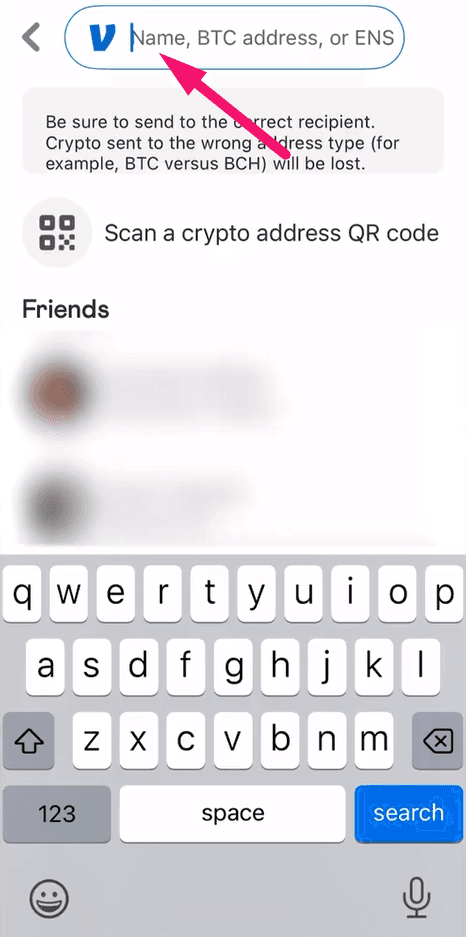
Log in to Apollo Group TV, go to the subscription page, and click Choose Plan for your preferred package.
Select Venmo as payment method
Choose the Venmo payment option, review the Bitcoin amount to send, and click Next Step.
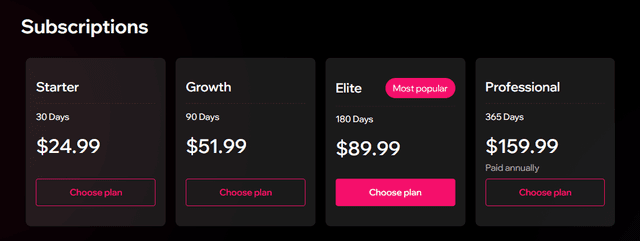
Acknowledge and copy the wallet address
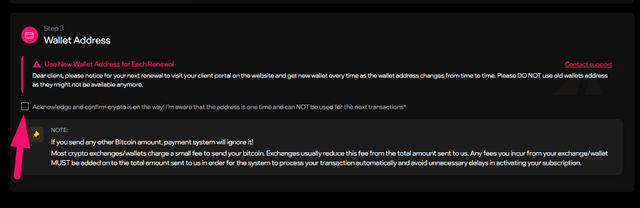
Check the acknowledgment box, then copy the Bitcoin wallet address shown. If the address is not supported, use the Legacy address option.
Pro tip: If Venmo shows 'wallet address not supported', click the alternative address button and copy the Legacy address instead.
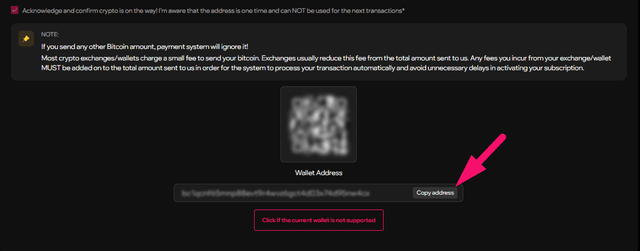
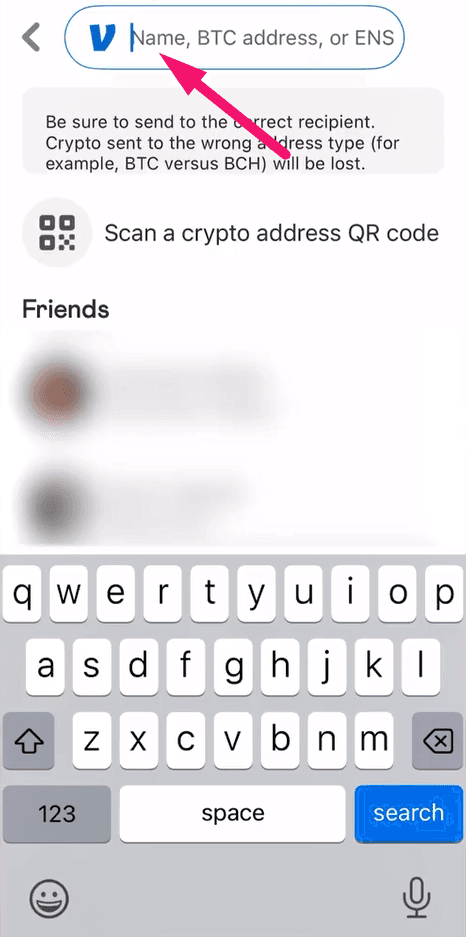
Paste the address in Venmo
Go back to Venmo and paste the wallet address you copied from the Apollo payment page.
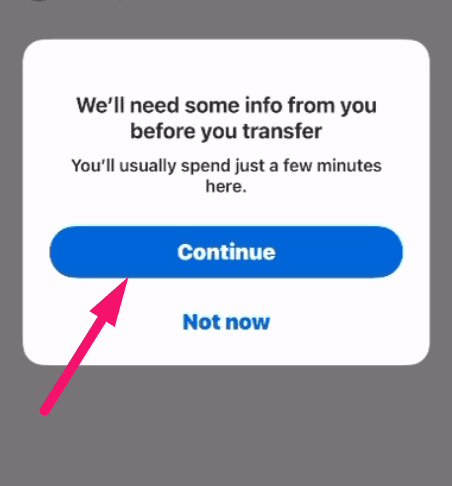
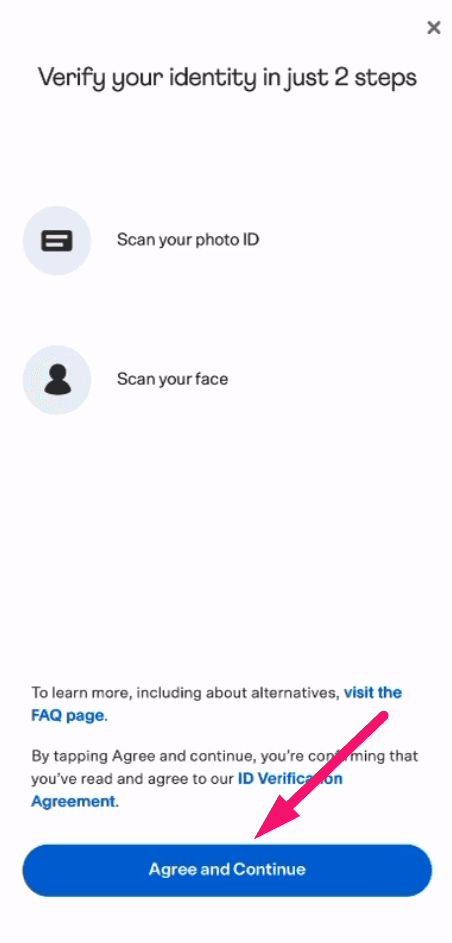
Complete identity verification
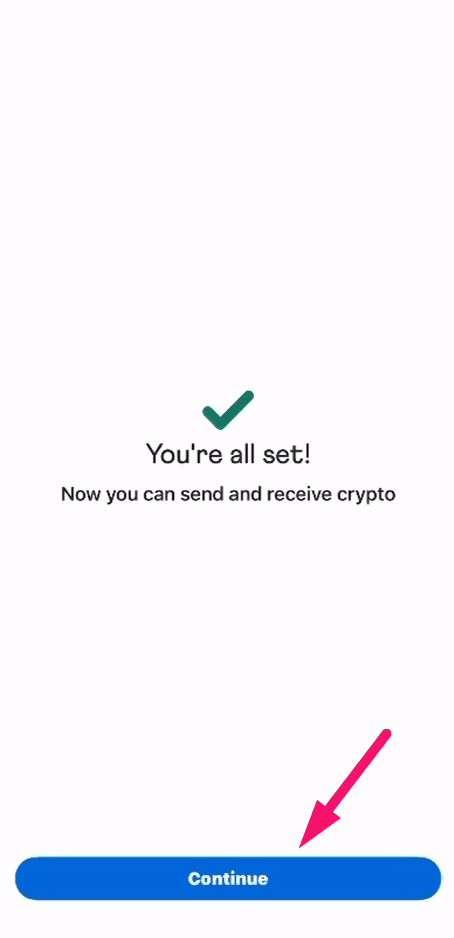
If this is your first time sending Bitcoin, Venmo will ask to verify your identity. Agree to the terms, select your document type, and upload photos of your ID.
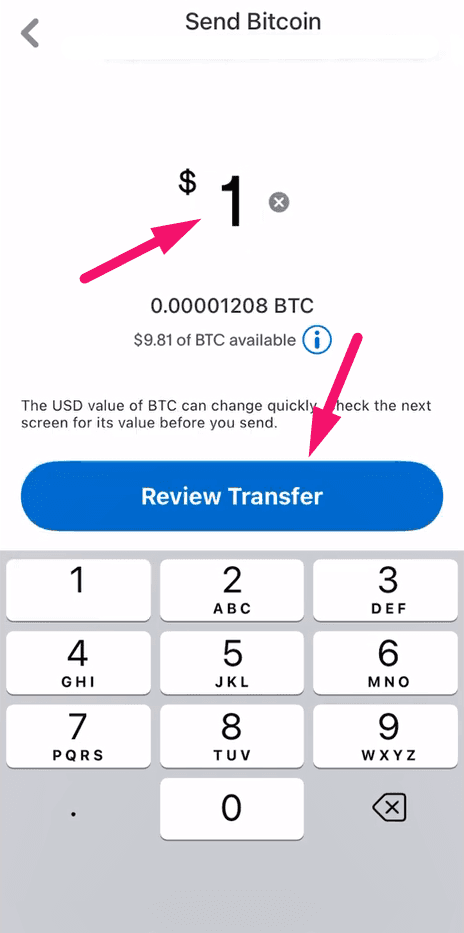
Enter the amount and review
Type the exact Bitcoin amount from your Apollo payment invoice and tap Review Transfer.
Confirm and wait
Review the transfer details and confirm. Wait for the blockchain to confirm the transaction — usually 10–30 minutes.
Note: Double-check the wallet address before confirming. Bitcoin transactions cannot be reversed.
What happens next?
Your Bitcoin payment is confirmed within 10–30 minutes. Once confirmed, your Apollo Group TV subscription activates automatically and you will receive a confirmation email.
Frequently asked questions
Venmo charges approximately 1.5% for Bitcoin purchases under $1,000. There is also a network fee when sending Bitcoin to an external wallet, typically $1–5.
Other payment guides
Ready to subscribe?
Get instant access to 22,000+ live channels, 90,000+ movies and shows, and premium sports content.
Subscribe to Apollo Group TVWant to compare tiers first? See all plans or talk to support.